2.4 GHz vs. 5 GHz Wi-Fi: What’s the Difference?
Choosing the right Wi-Fi band can often greatly impact your internet speeds.
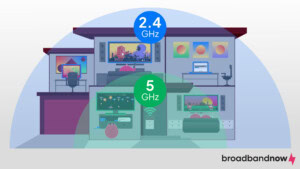
- The 2.4 GHz Wi-Fi band covers a larger area but runs slower, while 5 GHz delivers much higher speeds but with a shorter range.
- For tasks requiring high bandwidth close to the router, like streaming or gaming, use 5 GHz; for broader coverage, 2.4 GHz is preferable.
- The 5 GHz Wi-Fi band is less congested, offering a clearer channel and less interference, which is ideal for environments with many networks.
If you are wondering why your Wi-Fi is slow, choosing the right frequency band often provides an instant fix. The core difference is straightforward: the 2.4 GHz band offers better range and penetration through walls, while the 5 GHz band delivers significantly faster speeds over shorter distances. In this guide, we will help you understand your wireless network and explain which frequency to prioritize for gaming, daily browsing, and smart home connectivity.
Watch: Why Old Wi-Fi is Still Winning in 2026
Want a quick breakdown? This video walks through how 2.4 GHz and 5 GHz Wi-Fi actually perform in everyday use, including when each band helps or hurts your connection depending on distance, speed needs, and device type.
Quick Breakdown: Speed vs Range
In your home, the choice of Wi-Fi frequency band (2.4 GHz or 5 GHz) plays a pivotal role in your internet connection’s speed and reliability.
Many people don’t realize there are two bands until they see them pop up on their computer or mobile device. When you connect a new smartphone or laptop to your home Wi-Fi network, you may see two or three different options. For example, let’s say that your Wi-Fi name is “AdamsFamily.” When you look to connect, you might see “AdamsFamily,” “AdamsFamily2.4G,” and “AdamsFamily5G,” or something similar. To help you decide which network to select, here is a quick breakdown of how these frequencies compare for everyday home use.
The main differences between the wireless frequencies become apparent when looking at their range, speed, and bandwidth. The 2.4 GHz band is great for connecting over longer distances but offers slower speeds, generally maxing out between 450 and 600 Mbps, due to more traffic on the network. On the other hand, the 5 GHz band offers much faster speeds, often exceeding 1,300 Mbps, but provides coverage for shorter distances.
Another important difference is that the 2.4 GHz band cannot support as many devices at once and can quickly become bogged down by household congestion. While the 5 GHz band is newer and offers more channels to reduce interference, it cannot reach as far or penetrate walls as easily.
Technical Differences
| Feature | 2.4 GHz | 5 GHz |
|---|---|---|
| Speed | Slower (roughly 450 to 600 Mbps maximum) | Faster (capable of 1,300+ Mbps) |
| Range | High (reliably penetrates solid objects and walls) | Low (prefers an open line of sight) |
| Interference | High congestion (competes with basic household appliances) | Low congestion (cleaner overall signal) |
| Best for | Casual web browsing and smart home devices | Online gaming and 4K streaming |
While speed and range are important, the best Wi-Fi band ultimately depends on how and where you use your devices. The table below highlights common household scenarios and recommends the frequency band that typically delivers the best performance for each situation.
Real-World Uses
| Scenario | Recommended band | Why |
|---|---|---|
| Gaming PC in the same room as the router | 5 GHz | Lower latency |
| Smart bulb in the garage | 2.4 GHz | Better range |
| 4K Netflix streaming | 5 GHz | Higher bandwidth |
| Security camera outside | 2.4 GHz | Better penetration |
| Apartment building | 5 GHz | Less congestion |
| Large house | 2.4 GHz | Wider coverage |
What Is 2.4 GHz Wi-Fi?
The 2.4 GHz Wi-Fi band utilizes longer wavelengths, allowing it to cover greater distances and penetrate physical barriers more effectively. However, its widespread use in various household devices can lead to congestion and interference, impacting connectivity and speed.
Pros of 2.4 GHz
- Better range
- Better penetration through walls and other obstructions
Cons of 2.4 GHz
- Slower speeds
- More susceptible to interference from other electronic devices.
Overall, 2.4 GHz is the better choice when reliability over distance matters more than raw speed. It remains the most dependable option for whole-home coverage and low-bandwidth smart devices.
What Is 5 GHz Wi-Fi?
The 5 GHz band can transmit data more rapidly and is generally less affected by interference. Because it offers more channels, it acts like a multi-lane highway, moving data quickly for high-bandwidth activities like streaming 4K video or joining web conferences. However, its shorter wavelengths mean it cannot pass through solid objects as easily, limiting its range and causing it to struggle with walls.
It is best to use this band when you have a strong signal, especially in crowded environments like apartment buildings with many overlapping networks nearby. If your main personal devices or gaming consoles are close to your router, try to keep them on the 5 GHz network. Less critical devices, or those configured farther from the router, can be left on the 2.4 GHz network.
Pros of 5 GHz
- Higher data transmission speeds
- Less susceptible to interference
Cons of 5 GHz
- Shorter range
- Reduced effectiveness in penetrating solid objects
5 GHz is generally best when performance and speed are the priority over range. It delivers a smoother experience for high-bandwidth activities as long as you stay within close range of the router.
Key Differences Explained: Speed, Range, and Interference
Before diving into the specific differences, it helps to understand that 2.4 GHz and 5 GHz Wi-Fi don’t just differ in speed. They behave differently in real-world environments. Factors like distance from your router, physical obstacles, and network congestion all interact to shape performance. In this section, we’ll break down how speed, range, and interference work together to determine which band performs best in different situations.
What Is a Dual-Band Router?
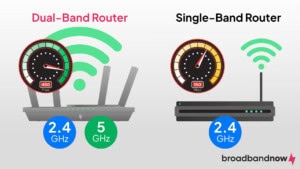
Put simply, a dual-band router broadcasts two separate signals on two different frequencies. This technology typically shows up in most Wi-Fi 5 (802.11ac) and newer Wi-Fi 6 (802.11ax) routers. If you have a newer router, it will likely run this dual-band technology and offer two different bands: 2.4 GHz and 5 GHz.
Why Do I Only See One Wi-Fi Name?
Many modern dual-band routers and mesh networks automatically combine both bands into a single network name. This feature, often called “Smart Connect” or “band steering,” allows your router to decide which frequency your device connects to at any given moment.
While band steering is designed to simplify your home network, it can sometimes cause confusion if you want to force a specific connection. If you prefer to manage your devices manually, you may need to log in to your router’s admin settings and disable this feature to separate the 2.4 GHz and 5 GHz networks.
Why Band Steering Can Feel Confusing
Band steering is designed to automatically move your devices between 2.4 GHz and 5 GHz to optimize performance, but it can sometimes feel unpredictable in practice. Devices may switch between bands unexpectedly, causing brief drops in speed or stability during everyday use. This can be especially frustrating when a device appears to “bounce” between connections without any clear reason.
It can also create issues during smart device setup, where IoT products fail to connect because the router keeps steering your phone or setup app to the wrong band. In some cases, users also find they cannot manually force a device to stay on one frequency, since the router actively overrides that choice.
Why Can’t I Force 2.4 GHz?
Many mesh systems, such as Eero, Nest WiFi, and Orbi, automatically manage connections through band steering. Some smart devices and setup apps require a 2.4 GHz connection, but modern routers often make this difficult. If your device won’t connect, you can manually force a 2.4 GHz connection using a few reliable workarounds.
How to Force a 2.4 GHz Connection
- Temporarily disable 5 GHz in your router settings: This is the most direct method. Log into your router admin panel, turn off the 5 GHz band during setup, then re-enable it afterward.
- Move farther away from the router: Distance and walls naturally push many phones and devices onto the 2.4 GHz band, which can help complete setup when band steering is active.
- Use a separate IoT or guest network (if available): Many routers offer a dedicated 2.4 GHz IoT network that avoids band steering and is optimized for smart home devices.
- Enable “IoT mode” or “compatibility mode” in your router: Some mesh systems (like Eero, Nest, or Orbi) include settings specifically designed to force 2.4 GHz pairing for smart devices.
Should You Separate 2.4 GHz and 5 GHz Networks?
Many modern routers combine the 2.4 GHz and 5 GHz bands under a single Wi-Fi name, which is convenient for most households because the router automatically chooses the best connection. However, separating the networks can make troubleshooting easier and give you more control over which devices use each band. The right choice depends on whether you prioritize simplicity or manual management.
Use one Wi-Fi name if:
- You want simplicity
- You use a mesh system
Use separate Wi-Fi names if:
- You frequently troubleshoot devices
- You have many smart home products
- You want manual control
How to Check Which Band You’re Currently Using
If you’re experiencing slow speeds or connection issues, the first step is identifying which Wi-Fi band you’re connected to. Fortunately, most devices provide this information in their network settings, allowing you to quickly verify whether you’re using 2.4 GHz or 5 GHz.
You may encounter devices that don’t make it obvious which band you’re connected to, but you can check it in a few seconds depending on your device:
Windows
- Settings → Network & Internet
- Click Wi-Fi
- Select Properties
- Check Network Band
Mac
- Hold Option
- Click the Wi-Fi icon
- View Channel Information
Android
- Settings
- Wi-Fi
- Network Details
- Frequency/Band
iPhone
- Use the router app or the AirPort Utility Wi-Fi scanner
Which Frequency Should You Choose?
Deciding between frequencies depends entirely on your home’s layout and what you do online. Different scenarios call for different Wi-Fi bands. In larger homes or buildings with many physical barriers, the 2.4 GHz band is often more effective. Conversely, in smaller spaces or for high-bandwidth activities, the 5 GHz band is preferable. When planning which Wi-Fi band to use, consider the types of devices you have and their primary uses. By assigning the correct devices to the right bands, you can optimize your entire household network and eliminate frustrating buffering or dropped connections.
Best for Gaming and Streaming: 5 GHz
If you are a serious competitive online gamer or plan to stream 4K movies on Netflix, you should choose the 5 GHz band. This frequency offers a wider bandwidth and significantly lower latency, making it better suited for high-demand activities. High-performance tasks demand a fast lane. The 5 GHz band minimizes lag, making it the ideal choice for competitive gaming on consoles and PCs. It’s also the best band for streaming in 4K or joining seamless Zoom video calls, as long as your device is in the same room or close to the router.
Best for Smart Home Devices: 2.4 GHz
The 2.4 GHz band uses longer waves to transmit through walls and floors, making it ideal for devices spread throughout your home or yard. Internet of Things (IoT) gadgets like smart bulbs, smart plugs, and robot vacuums almost exclusively rely on the 2.4 GHz frequency because they need the extended range to reach the perimeter of your house and don’t require much bandwidth to function. Normal activities like web browsing and checking email also work perfectly on the 2.4 GHz band.
Consider The Size of Your Home
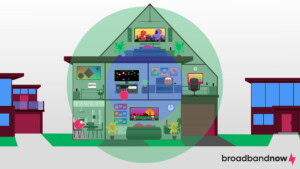
The size of your home plays a big role in determining what band you should use. For larger homes, the 2.4 GHz band may be a better choice for full coverage, especially if you have an older router and thick walls.
For smaller living spaces such as a condo or apartment, 5 GHz is great for fast internet speeds. It will also prevent interference from the many neighboring networks around you.
However, if you want to take advantage of the 5 GHz band in a larger home, consider investing in a Wi-Fi network extender or a modern mesh Wi-Fi system. These methods give you better coverage while still delivering the benefits of the 5 GHz band.
If your router separates the two bands, make sure you’re connecting your devices to the best band for them, taking into account their proximity to the router.
Router Placement Tips
- Place the router centrally
- Keep it elevated
- Avoid cabinets and closets
- Keep away from microwaves
- Avoid placing it behind TVs
- Avoid glass cabinets
- Don’t place near baby monitors or microwaves
If your device never moves (gaming PC, console, desktop workstation, etc.), Ethernet is still faster, more stable, and has lower latency than either 2.4 GHz or 5 GHz Wi-Fi.
Interference: Why the Microwave Kills Your Wi-Fi
If interference from other technological or household devices is a recurring problem, switching to the 5 GHz band may be best. Unfortunately, the 2.4 GHz band is more prone to interference from everyday devices. Common household enemies of the 2.4 GHz band include microwaves, baby monitors, Bluetooth speakers, and neighboring networks. This happens because the 2.4 GHz frequency is a narrow, crowded spectrum. When too many devices try to communicate on the same frequency, the signals overlap and disrupt each other, leading to dropped connections and slower internet speeds.
Number of Devices
Modern households are packed with internet-connected technology. If you already have several devices using the 2.4 GHz band, your internet speed can slow to an intolerable pace.
If you find yourself dealing with this issue, the 5 GHz band may be a better option. As long as the devices are close to the router, this should give you faster performance. As stated earlier, the 5 GHz band offers more channels, which means there is less chance of running into interference.
Signs You Are Using the Wrong Band
If your Wi-Fi feels inconsistent, the issue may not be your internet plan; it may be the band you’re using. Even if your internet plan is fast, connecting to the wrong Wi-Fi band can lead to poor performance. Slow speeds, buffering, dropped connections, or difficulty connecting smart home devices are often signs that your device would perform better on a different frequency. Here are some common indicators that it may be time to switch bands:
- Streaming constantly buffers despite a strong signal
- Gaming latency spikes unexpectedly
- Smart devices frequently disconnect
- Wi-Fi becomes weak after moving one room away
- Internet slows dramatically when the microwave runs
If any of these issues sound familiar, switching Wi-Fi bands may provide a quick and easy solution. Devices struggling with weak signals or located far from the router often benefit from moving to the 2.4 GHz band, while devices experiencing slow speeds, congestion, or high latency may perform better on 5 GHz. Testing both bands can help you find the best balance between coverage and performance for your specific setup.
5G vs. 5 GHz Wi-Fi: Two Different Technologies
This is a common confusion, but 5G is not the same as 5 GHz. While the terms 5G and 5 GHz are both used to discuss internet access, the similarities end there. When people use the term 5G, they often mean 5G cellular internet, which is very different from 5 gigahertz, a Wi-Fi frequency.
Generational Gap: The “G” in “5G” actually stands for “generation” — 5G is the fifth generation of a certain cellular standard. Though routers sometimes confusingly label their bands as 5 and 2.4 “G,” that “G” stands for “gigahertz” (GHz), which is the unit we use to measure wavelength. These two things have nothing in common — other than the letter “G.”
5G internet service is the latest in mobile broadband that lets you experience faster download and upload speeds and lower latency compared to 4G LTE. Users can now experience 5G home internet, but it’s available only to a small portion of residents in the U.S.
Some routers mistakenly label their 5 GHz Wi-Fi network as 5G Wi-Fi, which can be confusing. For example, your router might show network names like “HomeNetwork_5G” or “SmithFamilyWiFi_5G,” but these simply indicate the 5 GHz band of your home Wi-Fi, not a mobile network.
Because these terms often confuse consumers buying new networking gear, here’s a quick guide to the differences between the two.
| About | 5GHz Wi-Fi | 5G (mobile network) |
|---|---|---|
| What it is | A Wi-Fi frequency band broadcast used by home routers | The fifth generation of mobile network technology |
| Where it’s used | Inside your home or office network | Cell towers providing coverage nationwide |
| Purpose | Provides faster, shorter-range Wi-Fi connections | Delivers high-speed cellular data for phones, tablets and hotspots |
| Equipment needed | A dual-band or tri-band router | A 5G-compatible smartphone or device and a cellular plan |
Technical Insights: Frequency, Wavelength and Channels
We know that the 2.4 GHz band offers better range at lower speeds while the 5 GHz band offers higher speeds at a more limited range. But why do the bands work this way?
The relative strengths of these two bands come down to wavelength and channel availability.
Wavelengths and Frequencies
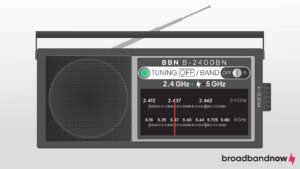
Longer wavelengths are just what they sound like: They have longer distances between crests of each wave. Longer wavelengths allow signals to travel farther. Longer wavelengths are less likely to interact with the mediums they travel through — to run into stuff, in a manner of speaking — so they tend to lose less energy over distances.
Conversely, shorter wavelengths, such as those used in the 5 GHz band, lose momentum more quickly. They are more readily absorbed and reflected by the physical materials they travel through, making them ideal for the unobstructed, line-of-sight demands of high-performance downloading and viewing 4K streams in the same room.
To visualize this concept using a common household scenario, think about loud music coming from a neighboring apartment. You will easily hear the low-frequency, thumping bass vibrating right through the structural walls, while the high-frequency treble of the vocals gets completely blocked. Your wireless router operates on a similar principle, utilizing lower frequencies to punch through architectural barriers while sacrificing the rapid data transmission found in the less penetrable, higher-frequency bands.
Health and Safety: If longer wavelengths are safer, should you primarily use 2.4 GHz Wi-Fi? Not at all. Both frequency bands are highly regulated and perfectly safe for everyday exposure, functioning just like television broadcasts, AM and FM radio signals, and standard walkie-talkie frequencies.
A band’s wavelength also determines its data transmission capabilities. This is where shorter wavelengths shine: They diffract less than longer wavelengths do. Diffraction is basically a fancy way of saying “spreading out” — you can think of shorter wavelengths as being more focused than longer ones. Less diffraction means that shorter wavelengths can preserve finer details in their broadcasts.
An everyday example that puts all of this together is the difference between AM and FM radios. FM radio uses a shorter wavelength. FM stations are great for music because their shorter wavelengths preserve all the details of a recording. But AM stations, which use longer wavelengths, have better range. When reach matters more than audio quality, as it often does for news stations, AM is a sensible choice.
As we know, there’s a similar relationship between 5 GHz and 2.4 GHz Wi-Fi bands. You can think of 2.4 GHz Wi-Fi as the AM radio of Wi-Fi bands!
Wi-Fi Channels
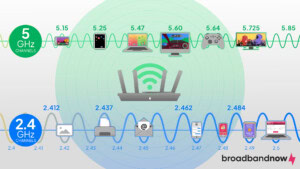
One reason the 5 GHz Wi-Fi band handles multiple devices better than the 2.4 GHz band is that it has more channels. What does this mean, exactly?
The key to understanding channels is that your devices don’t use the exact same frequency to communicate with your router. Being on precisely the same frequency would be like sharing a walkie-talkie channel, which would lead to substantial network interference and connectivity drops. Modern routers divide these frequency bands into designated channels, assigning specific pathways to individual devices as needed.
In theory, there are nearly infinite frequencies to use. In reality, though, frequencies that are too similar will interfere with each other. There needs to be enough space between each assigned frequency to keep things orderly, so each channel is more like a small range of frequencies — a mini-band within the larger band. Each of these mini-bands is a channel.
The 5 GHz band has more non-overlapping channels than the 2.4 GHz band does, which reduces the likelihood of interference and congestion from other devices. Specifically, the 2.4 GHz band only offers three non-overlapping channels (channels 1, 6, and 11), whereas the 5 GHz band provides 25 non-overlapping channels (when using 20 MHz channel widths). This extra space is a major advantage in densely populated apartment buildings or smart homes, helping avoid signal overlap when neighboring routers default to the same frequency.
The 2.4 GHz band has fewer channels but is more widely used because it supports more devices and offers extended range. However, this popularity often leads to congestion and severe interference, particularly from household appliances and neighboring networks, which can ultimately disrupt connection stability.
Beyond 5 GHz: What Is the 6 GHz Band?
Wi-Fi 6E and Wi-Fi 7 are the next leaps in Wi-Fi technology, utilizing the 6 GHz band to offer even faster speeds and more efficient data transmission. This development promises to enhance wireless connectivity, especially in environments with high-density Wi-Fi usage.
When these become more widely adopted, the 6 GHz band will become another consideration when configuring your home network setup. Your most important devices might be best positioned on it instead, as it offers the best overall stability and speeds. Routers with 6 GHz capabilities also have auto band steering to keep your home working optimally without manual changes.
Here’s how 2.4 GHz and 5 GHz stack up against the latest 6 GHz technology.
| Feature | 2.4 GHz | 5 GHz | 6 GHz |
|---|---|---|---|
| Real-world speed | 150 Mbps | 1 Gbps | 2 Gbps |
| Max speed | 450 Mbps | 1.3 Gbps | 9 Gbps |
| Range | Longest range, best wall penetration | Moderate range, weaker through walls | Shorter range, ideal for same-room use |
| Interference | High | Low | Lowest |
| Best use | Smart home devices, basic browsing, long-distance connections | Streaming, gaming, video calls, everyday multitasking | Ultra-fast streaming, large file transfers, low-latency gaming |
Getting the Most Out of Your Home Wireless Network
Choosing the right frequency ultimately comes down to balancing distance and performance. If you need a connection that pushes through floors and walls to reach a smart garage door opener, 2.4 GHz is your dependable workhorse. But when you sit down to play a competitive game or stream a 4K movie, the 5 GHz band will deliver the lag-free speeds you need. The best Wi-Fi experience comes from matching each device to the right band rather than relying on a single “best” option. In most homes, 2.4 GHz delivers reliable whole-home coverage, while 5 GHz provides faster performance for nearby, high-demand devices.
If you think of your network as something you actively tune rather than a fixed setup, it becomes much easier to avoid dead zones, reduce buffering, and get more consistent performance from the internet speed you already have.
Frequently Asked Questions About 2.4 GHz vs. 5 GHz
Is 5 GHz better for gaming?
Yes, 5 GHz is ideal for gaming. It provides significantly lower latency and experiences less interference from other electronics. This ensures a smoother, more responsive multiplayer experience, as long as your console or PC is in the same room or relatively close to the router.
Can I use both 2.4 GHz and 5 GHz at the same time?
Yes, modern dual-band routers broadcast both the 2.4 GHz and 5 GHz frequencies simultaneously. You can either select each network manually from your device’s Wi-Fi settings or rely on “band steering,” which lets the router automatically assign the best band based on your device’s range and capabilities.
Should I use 2.4 GHz or 5 GHz for smart home devices?
It depends. Most smart home devices, like cameras, plugs, and sensors, work better on 2.4 GHz because it has a longer range and better wall penetration. While 5 GHz offers faster speeds, its shorter range can cause connection issues for devices farther from the router. Bandwidth-heavy devices like smart TVs or hubs nearby would do better on 5 GHz.
Is 5G Wi-Fi the same as 5 GHz Wi-Fi?
No, the two technologies are not the same. 5G is the fifth generation of mobile network technology, used by cellular providers for mobile data. 5 GHz Wi-Fi is a radio frequency band your home Wi-Fi uses to transmit data locally.
Is 5 GHz Wi-Fi better for streaming?
5 GHz Wi-Fi is usually better for streaming. It offers faster speeds and less interference, making it ideal for high-bandwidth activities like streaming HD or 4K video, online gaming, or video conferencing. The trade-off is that 5 GHz has a shorter range and weaker wall penetration than 2.4 GHz. For devices farther from your router or in areas with many walls, you might get more consistent performance using 2.4 GHz.
What is a tri-band router?
A tri-band router broadcasts three Wi-Fi signals. In addition to a 2.4 GHz band and a 5 GHz band, tri-band routers have a second 5 GHz band or a new 6 GHz band. This setup reduces congestion and improves performance by distributing devices across multiple bands. Tri-band routers are especially useful in homes with many devices or heavy internet use, as they allow more simultaneous connections without sacrificing speed.
How do I know if my Wi-Fi is 6 GHz?
To check if your Wi-Fi is 6 GHz, look in your router’s settings or your device’s Wi-Fi options. Networks on the 6 GHz band may be explicitly labeled as 6 GHz. Both your router and devices must support Wi-Fi 6E or Wi-Fi 7 to access the 6 GHz band. If you only see 2.4 GHz and 5 GHz networks available, your setup likely doesn’t support 6 GHz.