How to Use iCloud Parental Controls to Keep Your Children Safe
Learn how to manage your child’s iPhone with Screen Time, Family Sharing, purchase approvals, and Apple’s built-in safety tools.

- Apple’s built-in parental controls give parents tools to manage their child’s iPhone usage, including screen time limits, content restrictions, app approvals, and privacy settings.
- Through Family Sharing and Screen Time, parents can customize rules for their child’s account, manage device settings remotely, and prevent important restrictions from being changed without approval.
- Parental controls are most effective when combined with open conversations about online safety, responsible device use, and the reasons behind the rules you set.
For many families, a child’s first smartphone is an iPhone, making it one of the most important devices to manage for keeping our children safe online. While Apple’s parental controls also work on iPad, Mac, and other Apple devices, most parents are looking for ways to monitor and customize their child’s iPhone. Fortunately, Apple provides a comprehensive set of built-in tools that help parents manage screen time, restrict content, approve purchases, and stay informed about their child’s digital activity.
Apple has replaced its older “Restrictions” settings with Screen Time and Family Sharing, making it easier than ever to customize parental controls from your own device or directly on your child’s iPhone. Whether you want to limit social media use, block inappropriate websites, enable Communication Safety, or require approval before app downloads, these features give you greater control over how your child uses their device.
Quick Answer: 2 Ways to Set Up iPhone Parental Controls
- Family Sharing (Recommended): Manage your child’s Screen Time, content restrictions, and purchase approvals remotely from your own iPhone. This is the best option if both you and your child use Apple devices.
- Directly on Your Child’s iPhone: Set up Screen Time and parental controls on the device itself. This works well if you don’t use an iPhone, but your child does.
Watch: How to Use Apple Parental Controls Effectively
Need the highlights first? This video explains how to set up iPhone parental controls, manage Screen Time, block inappropriate content, and use Family Sharing to monitor your child’s device.
How Family Sharing and Child iCloud Accounts Work
Apple makes it easier for parents to manage their kids’ online activity through Family Sharing and child iCloud accounts. With Family Sharing, up to six family members can share Apple subscriptions, iCloud storage, and purchases while keeping their own accounts separate. Parents or guardians act as organizers and can create Apple IDs for children.
When you set up a child’s iCloud account under Family Sharing:
- The parent automatically becomes the family organizer and manages the child’s account.
- The child gets their own Apple ID, but their activity (like app downloads or screen time) is linked to the parent’s account for oversight.
- Restrictions, purchase approvals, and Screen Time settings sync across all devices connected to the child’s Apple ID.
You only need to configure parental controls once, and iCloud ensures those settings carry over to any Apple device your child uses, including iPhone, iPad, Mac, Apple Watch, and more.
What iCloud Parental Controls Does Apple Offer?
Apple offers a variety of specialized Parental Controls that allow you to control activities such as screen time limits, purchasing behavior, web search functionality, content limits, and location tracking. You can mix and combine these activity controls to customize your child’s internet experience and level of access. We describe each category in depth below before explaining how to use each feature.
- Enable Screen Time: Screen Time provides parents with options to customize downtime, set app limits, create communication limits and safety regulations, block or restrict content, and allow or restrict websites to track activity and capture data.
- Set Content & Privacy Restrictions: Within Screen Time settings, parents can adjust Content and Privacy Restrictions, including App Store purchases, allowed apps, location services, and various account changes and preferences. Content restrictions can be set for almost every iPhone feature and content area, including Music, Podcasts, News, Movies, TV, Apps, Web Content, Siri, and Game Center. You can also adjust these settings based on your child’s age and your preferences.
- Set Up Ask to Buy: Parents can enable or disable the Require Purchase Approval function for any downloads or purchases from Apple platforms. You can also adjust which applications your child can download or access by age range and allow them to delete apps on their own or only with parental consent. Alternatively, you can provide Apple Cash (a great tool for budgeting and money lessons).
- Set Up Guided Access: Enable Guided Access to restrict children from accessing certain predetermined areas of the screen in specific apps, so they don’t make unwanted purchases or access other parts of apps. Apple’s Guided Access keeps the iPhone in a single app and allows you to control which features are available.
- Turn Off App Tracking: The Tracking feature allows you to enable or disable apps’ ability to track your child’s activity. Turning off this feature means companies cannot use your child’s data for advertising purposes or behavioral analysis.
- Enable Focus Mode: Focus allows you to control what types of notifications your child’s device receives. This setting lets you customize for various situations, including Do Not Disturb, Personal, Sleep, and Work. You can also enable notifications from certain Contacts or Apps while disabling others with this feature.
- Monitor Contacts: Parents can directly manage their child’s contacts through Parental Controls, including setting allowed communication times during certain Screen Time or Downtime periods. You can also request the ability to edit Contacts directly from your device. Emergency Contacts and Recovery Contacts are also an optimal way to ensure your child has a safety feature within their own mobile device.
- Set Up Location Sharing: Apple’s Find My feature is also extremely useful for parents. In Parental Controls, you can set up Share Your Location with family members so they know where you are and vice versa.
How to Turn On iCloud Parental Controls
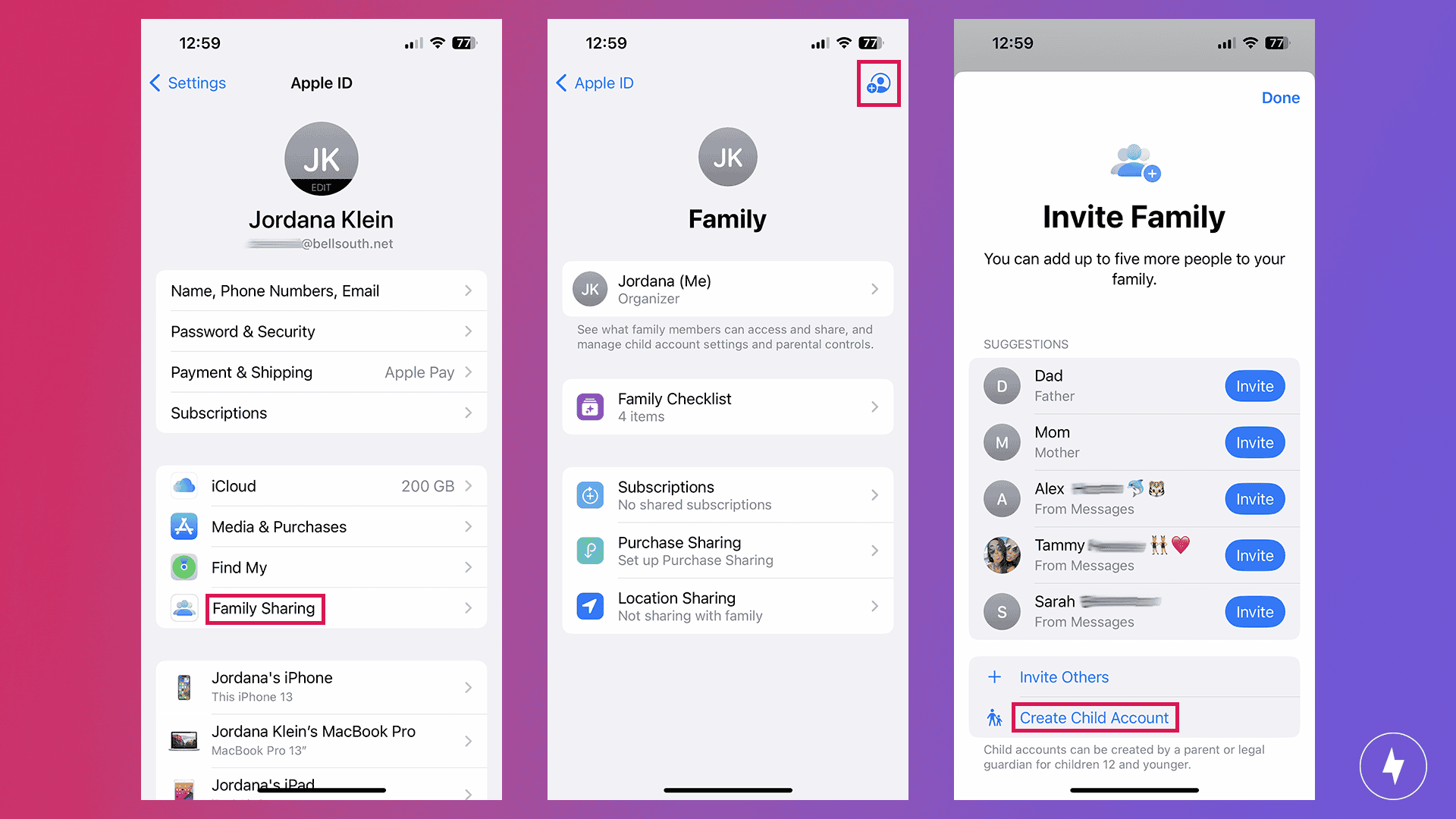
Before configuring specific parental control settings, create an account for your child and add it to your Apple Family in iCloud Settings. From there, you’ll be able to set up Parental Controls and modify the account based on your preferences and your child’s age. You can set up all your Parental Controls at once during this process, or you can create the account and learn step by step in the following sections, which explain how each parental control works. Here are the steps to get started and create your child’s account:
- Navigate to your Apple Account Settings.
- Tap Family Sharing.
- Tap the Add Member button at the top right of the screen.
- Tap Create Child Account to start the addition process.
- Enter your child’s name and birthday to add the new account.
- Review the Parental Controls settings and adjust them to your preferences. You can also come back to this section later and follow our guidance below.
- Add an email address for the child, use the provided @icloud.com address, or go with your child’s Game Center nickname to finalize the account.
How to Manage Screen Time With iCloud
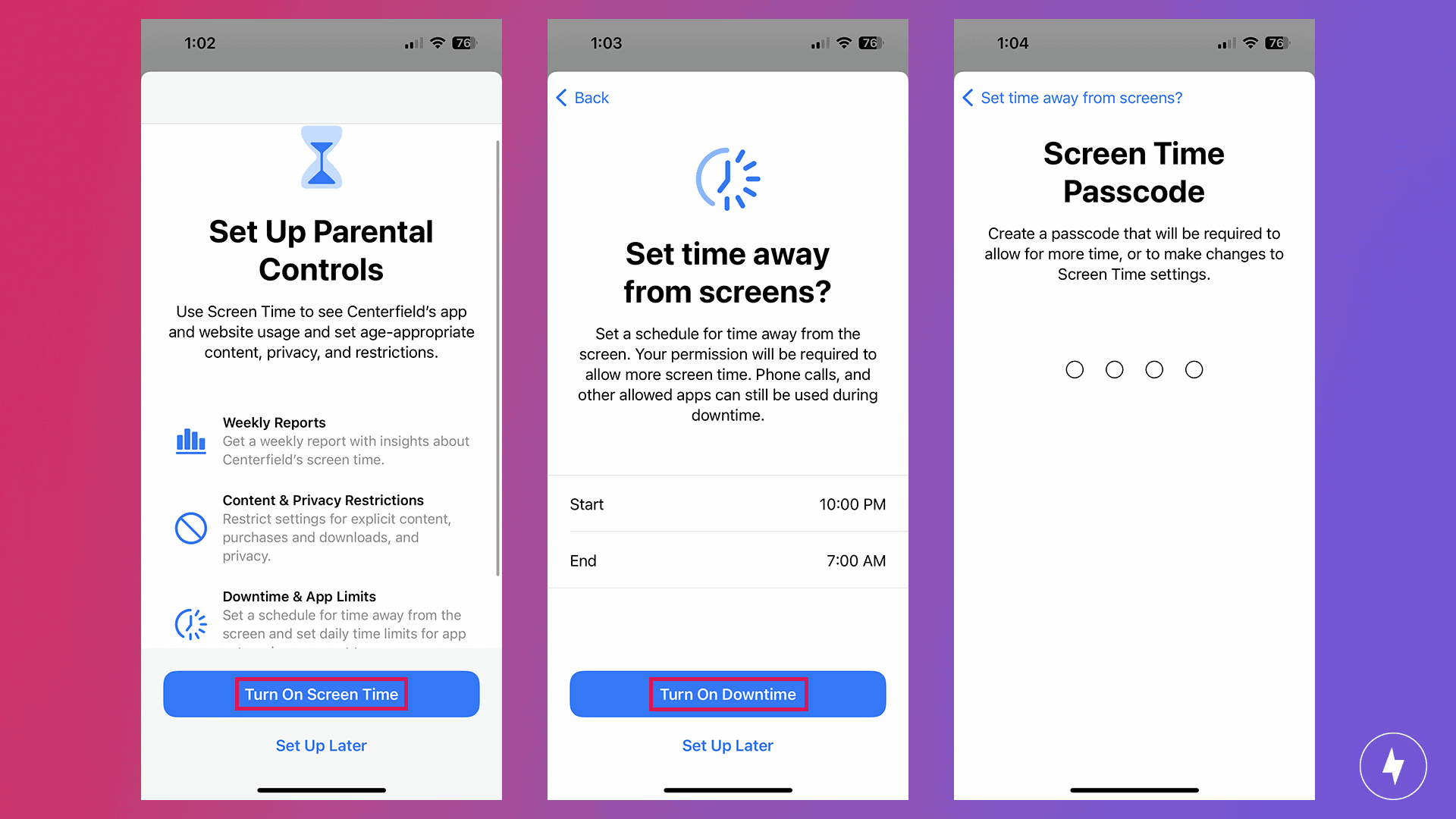
Step 1: Turn On Screen Time & Set a Passcode
Screen Time is the foundation of Apple’s parental controls, allowing you to manage your child’s device usage, restrict content, and set app limits. Before configuring any restrictions, you’ll need to enable Screen Time and create a passcode.
- Open Settings.
- Tap Screen Time.
- Tap Turn On Screen Time.
- Select This is My Child’s iPhone.
- Create a Screen Time passcode and verify your Apple ID.
Note: Choose a Screen Time passcode that’s different from your child’s device unlock code. Otherwise, they may be able to change or disable the restrictions themselves.
Step 2: Schedule Downtime
Downtime lets you schedule periods during bedtime or homework hours when only approved apps and contacts are available.
- Open Settings > Screen Time.
- Tap Downtime.
- Turn on Scheduled and choose the days and times you want Downtime to apply.
- Enable Block at Downtime to prevent your child from simply ignoring the limit.
You can also decide which contacts and apps remain available during Downtime through the Always Allowed settings.
Note: Turn on Block at Downtime. Without this option enabled, your child can simply tap Ignore Limit and continue using the app.
Step 3: Set App Limits
App Limits help you manage how much time your child spends on categories like social media, games, or entertainment.
- Go to Settings > Screen Time.
- Tap App Limits.
- Select Add Limit.
- Choose one or more app categories or individual apps.
- Set a daily time limit and save your changes.
You can also decide whether apps are blocked once the limit is reached or whether your child simply receives a reminder.
Note: App Limits apply by category, so newly installed apps in that category inherit the same limits automatically.
Step 4: Configure Content & Privacy Restrictions
Content & Privacy Restrictions let you control what your child can access, purchase, and modify on their iPhone.
- Open Settings > Screen Time.
- Tap Content & Privacy Restrictions.
- Enter your Screen Time passcode.
- Turn on Content & Privacy Restrictions.
- Customize settings for App Store purchases, allowed apps, web content, Siri, Game Center, location sharing, account changes, and other device settings based on your child’s age.
From this menu, you can also block inappropriate websites, prevent app installations or in-app purchases, and restrict changes to important device settings.
How to Set Content & Privacy Restrictions
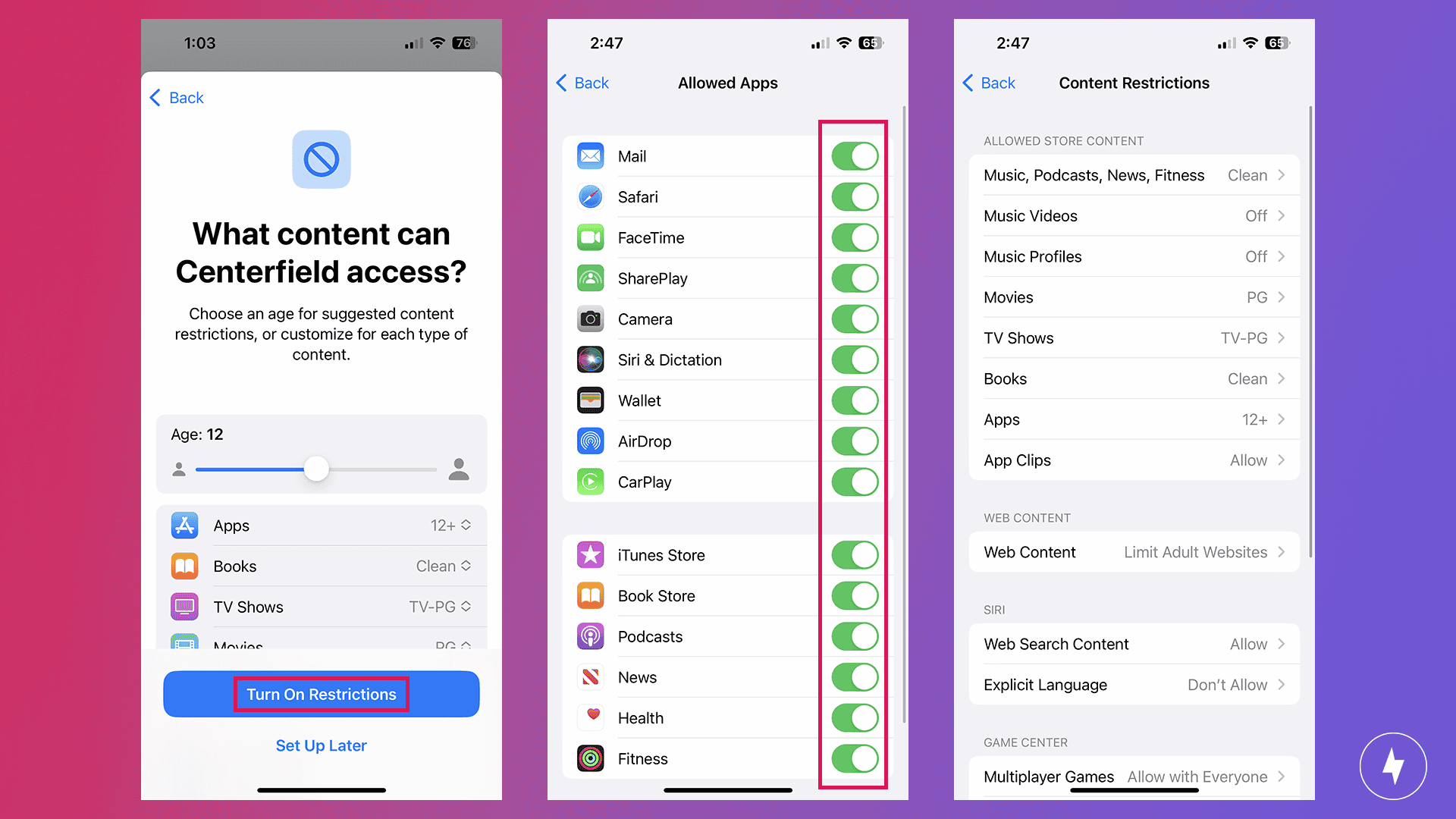
Content & Privacy Restrictions give parents more control over what their child can access, download, and change on an iPhone. These settings allow you to manage app purchases, website access, privacy permissions, account changes, and other device features based on your child’s age and needs.
- Tap Settings.
- Tap Screen Time.
- Tap Turn On Screen Time.
- Choose This is My Child’s [Device] (the device name will be listed here).
- Tap Content & Privacy Restrictions.
- Enter the passcode you set during the initial Parental Control setup.
- Adjust settings across all apps, privacy, and device changes, including:
- iTunes & App Store Purchases: Decide if your child can install apps, delete apps, or make in-app purchases. You can also decide if you want to always require a password for additional purchases from the iTunes, Book, or App Store.
- Allowed Apps: Toggle each App on or off to decide whether your child can access it.
- Content Restrictions: Review allowed store content, web content, Siri, and Game Center options for everything from Music and Podcasts to Web Content to Multiplayer Games.
- Share My Location: Select Allow or Don’t Allow Changes within this menu.
- Passcode Changes: Select Allow or Don’t Allow Changes within this menu.
- Account Changes: Select Allow or Don’t Allow Changes within this menu.
- Cellular Data Changes: Select Allow or Don’t Allow Changes within this menu.
- Driving Focus: Select Allow or Don’t Allow Changes within this menu.
- TV Provider: Select Allow or Don’t Allow Changes within this menu.
- Background App Activities: Select Allow or Don’t Allow Changes within this menu.
How to Block Adult Websites and Pornography
Apple’s Web Content filters let you limit the websites your child can access, helping block explicit content and create a safer browsing experience on their iPhone.
To access these settings, go to:
Settings → Screen Time → Content & Privacy Restrictions → Content Restrictions → Store, Web, Siri & Game Center Content → Web Content
From there, you’ll have three options:
- Unrestricted Access: Allows your child to visit any website without content filtering.
- Limit Adult Websites: Uses Apple’s built-in filter to automatically block many adult websites while still allowing access to most of the internet. This is the best option for older children and teens who need broader web access.
- Allowed Websites Only: Creates a whitelist that only allows access to websites you approve. This setting is ideal for younger children who only need access to a limited number of educational or family-friendly sites.
Note: While Apple’s web filter blocks many inappropriate websites, no automatic filter is perfect. Regularly review your child’s online activity and have open conversations about internet safety to keep them safe online.
How to Enable Communication Safety
Communication Safety is a built-in iPhone feature designed to help protect children from accidentally viewing or sharing sensitive images. When enabled, Apple uses on-device processing to detect images that may contain nudity and warns you before the image is viewed or sent.
To enable Communication Safety:
- Open Settings.
- Tap Screen Time.
- Select your child’s name under Family.
- Tap Communication Safety.
- Toggle Communication Safety on.
When Communication Safety detects a potentially explicit image, it automatically blurs the photo, and your child receives a safety warning with options to learn more or choose whether to continue. The feature can help prevent unwanted exposure while encouraging children to make safer choices online.
Communication Safety works with Messages and supported sharing experiences, including features such as AirDrop, helping provide an additional layer of protection across common ways children share content on their iPhone.
Note: Communication Safety is designed as a safety tool, not a replacement for conversations about online behavior. Discussing why these protections exist can help children make responsible decisions when using their devices.
How to Set Up Ask to Buy
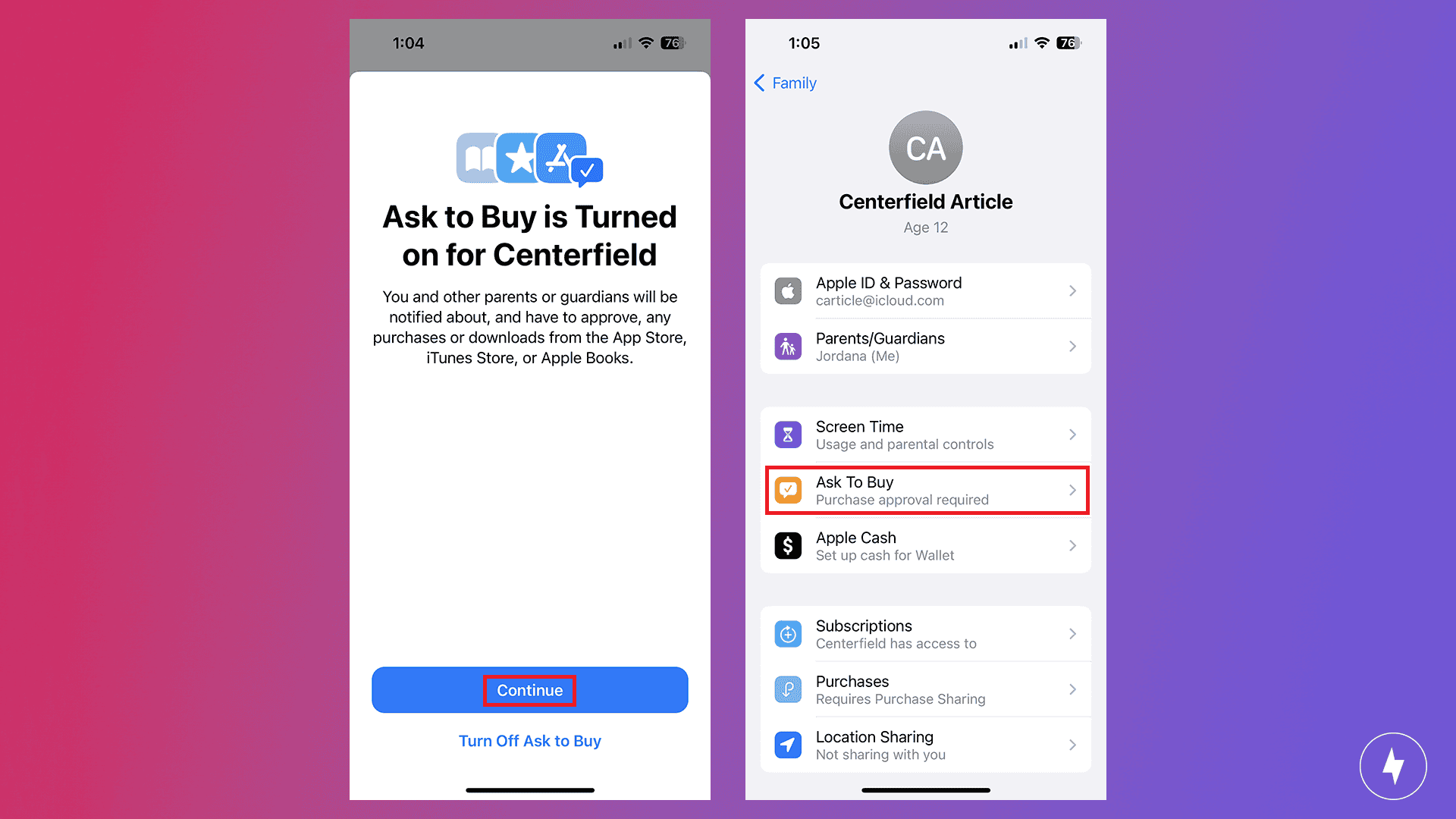
When Ask to Buy is enabled, your child must request approval before downloading or purchasing apps, games, movies, books, and other content from Apple’s digital stores. The approval request is sent directly to the family organizer’s iPhone, iPad, or Mac, where you can review and approve or decline it. Depending on your settings, Ask to Buy can also require approval for free app downloads, giving you oversight of every app your child installs. It’s a simple way to prevent unexpected credit card charges from games and in-app purchases while ensuring you know what content your child is accessing.
- Navigate to Settings.
- Tap your name.
- Tap Family Sharing.
- Tap your child’s account name.
- Tap Ask to Buy.
- Toggle Require Purchase Approval on or off.
How to Set Up Guided Access
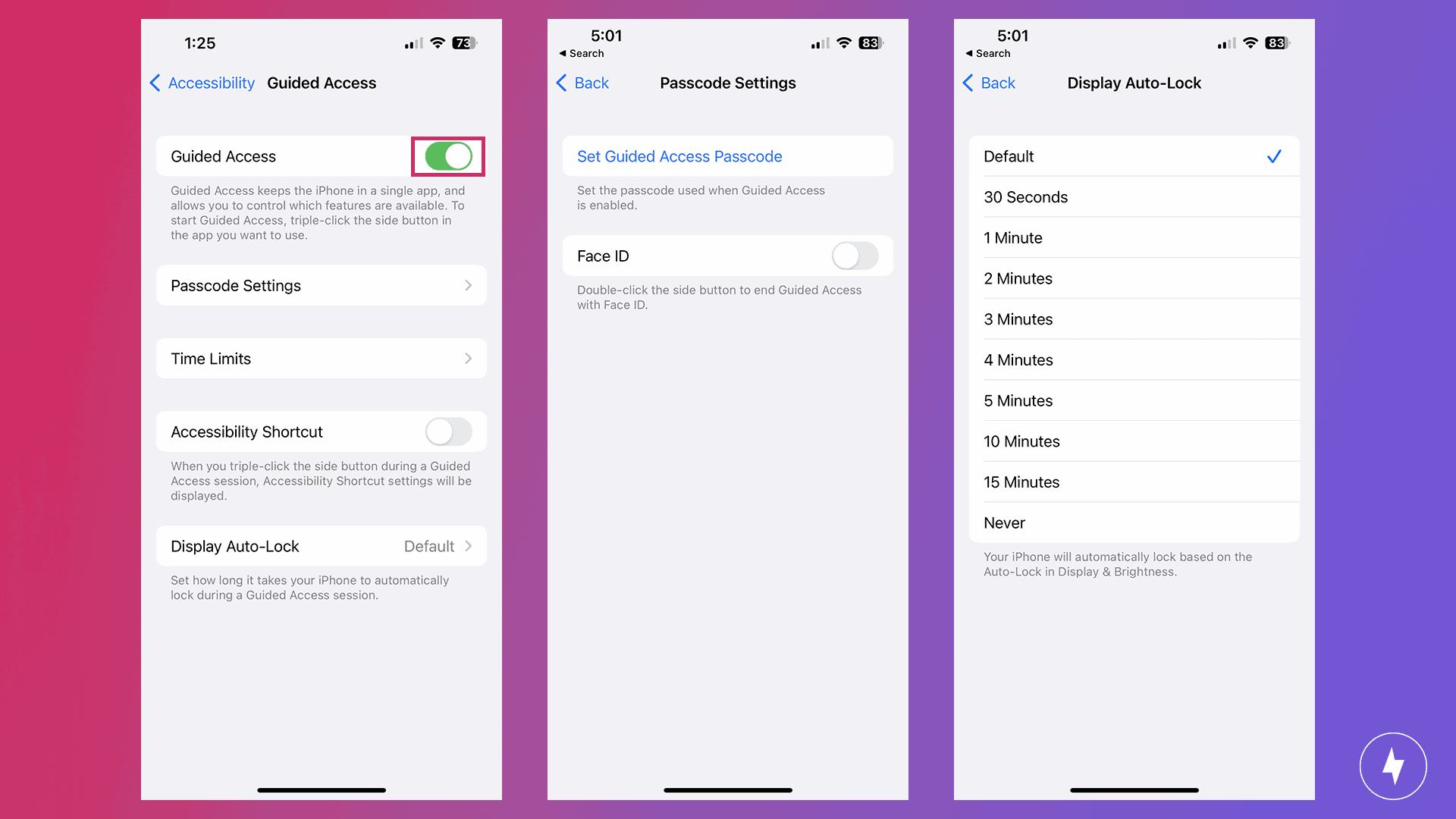
Guided Access is useful when you want your child to stay focused on a specific app without opening other areas of the device. It’s especially helpful for younger children using educational apps, streaming services, or games where accidental taps could lead to unwanted actions.
- Navigate to Settings on your child’s device.
- Tap Accessibility.
- Tap Guided Access.
- Toggle the Guided Access button to enable this feature.
- Tap Passcode Settings.
- Tap Set Guided Access Passcode, and establish a passcode for ending a Guided Access session in the future.
- In Guided Access, you can also set Time Limits, the Auto-Lock functionality, and establish accessibility shortcuts.
Guiding Your Child’s Access: If you enable the Accessibility Shortcut, you can triple-click the side button to view or edit the settings you requested for each app. You can toggle on or off the Side Button, Volume Buttons, Motion, Software Keyboards, Touch, and Time Limit. You can also circle areas of the screen within each app that you want to disable.
How to Turn Off App Tracking
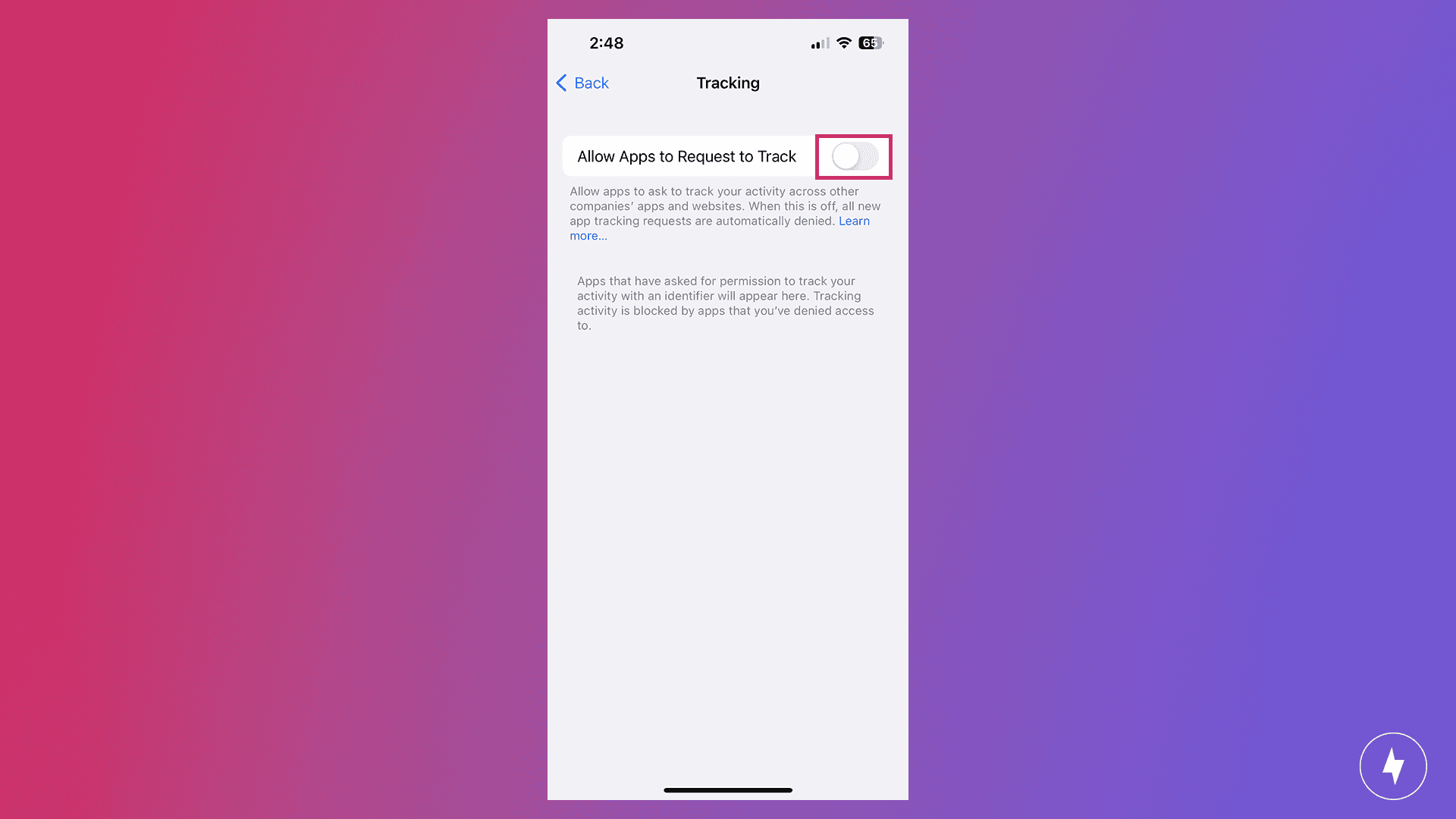
Apple’s App Tracking Transparency settings give parents more control over how apps collect and use their child’s data. Turning off tracking can reduce personalized advertising and limit how apps share activity information.
- Navigate to Settings on your child’s device.
- Tap Privacy & Security.
- Tap Tracking.
- Toggle this feature off to disallow apps from tracking your child’s activity.
Keeping Track: This feature is essential if your children have their own devices. Even as parents, we don’t necessarily want companies or organizations to be tracking our every move and invading our privacy.
How to Enable Focus Mode
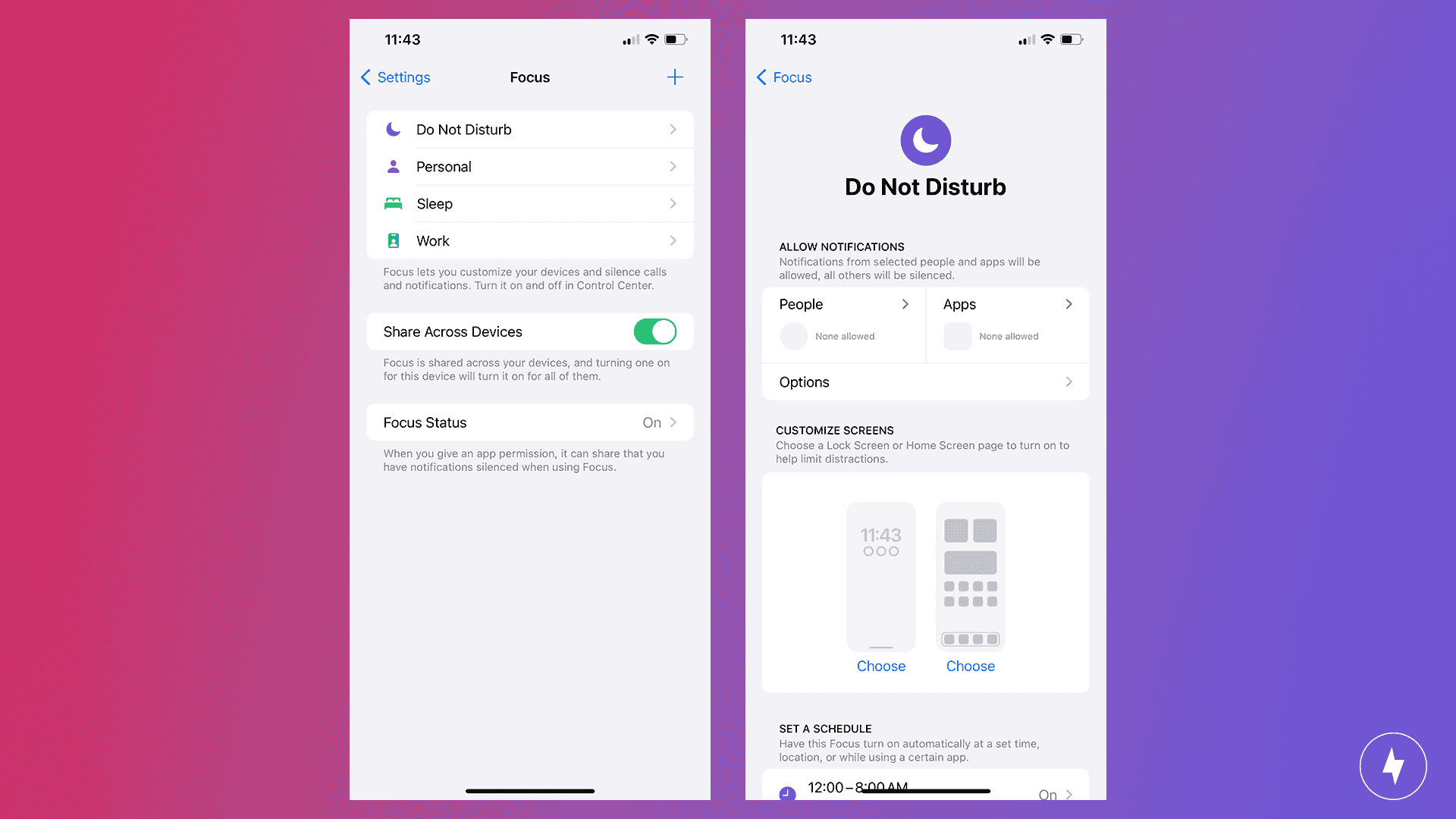
Focus Mode helps children build healthier device habits by reducing distractions during specific activities. Parents can customize notification settings for school, sleep, downtime, or other routines.
- Navigate to Settings on your child’s phone.
- Tap Focus.
- Within Focus Mode, you can set up parameters for Do Not Disturb and messages during calls, as well as Sleep, Personal, and Work environments.
Staying Focused: When setting up a Focus mode for your child’s device, we recommend configuring the Work environment for schoolwork. When this Focus mode is enabled, your child won’t face distractions from interruptions like calls, messages, and notifications.
How to Monitor Contacts
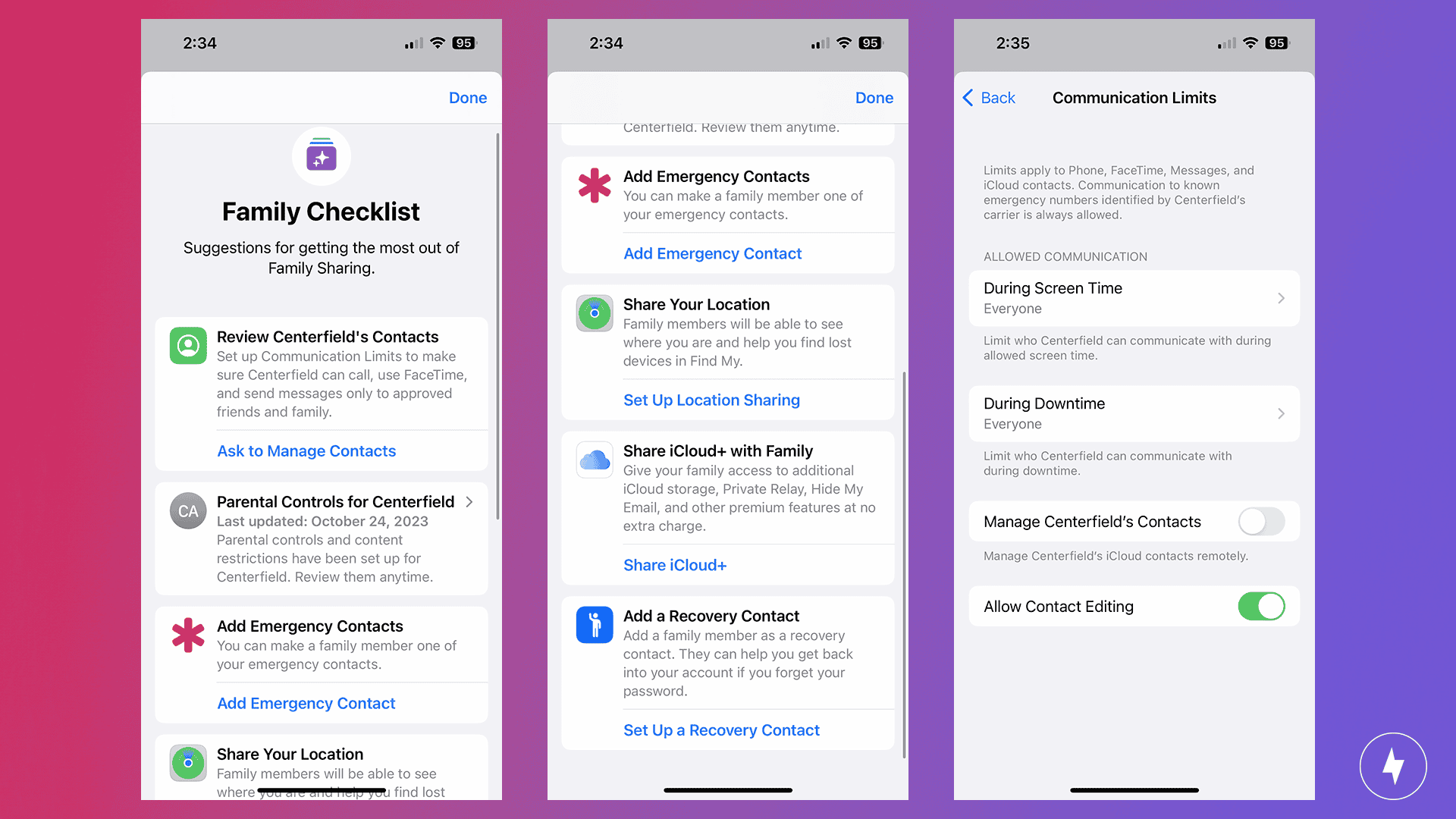
Monitoring Contacts helps parents manage who their child can communicate with and when those conversations can happen. Through Apple’s communication limits and Family settings, parents can control contact access during Screen Time or Downtime while helping children maintain safer communication habits.
- Navigate to Settings.
- Tap Family.
- Tap Family Checklist.
- Tap Ask to Manage Contacts under Review [Child’s] Contacts. Here, you’ll find settings for various Communication Limits.
- During Screen Time: Allow Communication During Screen Time for Everyone, Contacts Only, or Contacts & Groups with at Least One Contact.
- During Downtime: Allow Communication during Downtime for Specific Contacts or for Everyone. If you choose Specific Contacts, you’ll be prompted to choose the Contacts or to add new Contacts immediately.
- Manage [Child’s] Contacts: Toggle on or off to manage their Contacts remotely.
- Allow Contact Editing: Toggle this feature on or off.
Setting a Recovery Contact: Under your Family Checklist, you can Add a Recovery Contact who can help you get back into your account if you forget your password (or vice versa). You can also Add Emergency Contacts within the Family Checklist, as well as customize when these are accessible.
How to Set Up Location Sharing
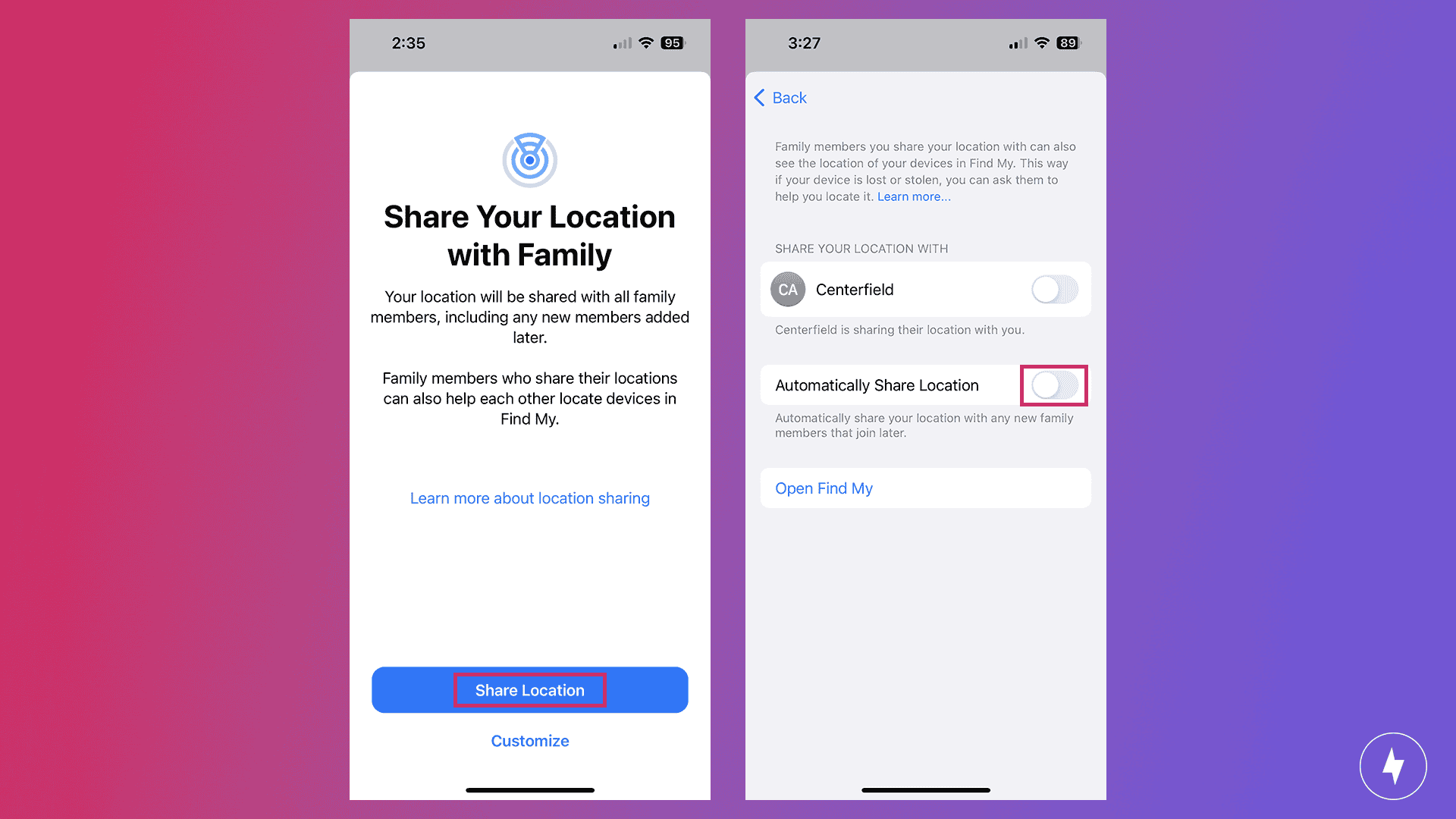
Location Sharing allows parents to stay informed about their child’s whereabouts through Apple’s built-in Family and Find My features. When enabled, parents can view a child’s location, manage sharing settings, and add an extra layer of safety for everyday activities.
- Navigate to Settings.
- Tap Family.
- Tap Family Checklist.
- Tap Set Up Location Sharing.
- Toggle your child’s name on or off to share your location.
- Toggle Automatic Location Sharing on or off.
- Tap Open Find My to see any Contact or Device’s location within this app.
Troubleshooting iCloud Parental Controls
If you forget the Screen Time passcode, you’re locked out of adjusting your restrictions. Here’s how to reset the passcode.
1. Forgotten or Lost Screen Time Passcode
When you forget the screen time passcode, you’re locked out of adjusting your restrictions. Here’s how to reset the passcode.
- Navigate to Settings and select Screen Time.
- Select Change Screen Time Passcode, and then Forgot Passcode?
- Enter the Apple ID (make sure it’s the parent account) and password used to set up Screen Time.
- Follow the prompts to reset the passcode.
2. Apps Bypassing Restrictions
Kids find workarounds, like re-downloading restricted apps, using web versions or exploiting app categories. Here’s how to check in on the restrictions.
- Double-check Content & Privacy Restrictions under Screen Time and ensure app categories (like web browsers or social media) are properly restricted.
- Enable Limit Adult Websites in Safari to block web-based workarounds.
- Regularly review Screen Time activity reports to spot any new loopholes.
3. iCloud Not Syncing Parental Controls
If restrictions don’t appear on all your child’s devices, there’s likely a syncing issue. Follow these steps to fix it.
- Make sure the child is signed in to the same Apple ID on every device.
- On each device, check that iCloud Drive is enabled.
- Restart both parent and child devices after changes.
- If syncing still fails, sign out and back into iCloud on the child’s device.
4. Ask to Buy Requests Not Showing Up
If you’re not seeing any purchase requests come through, here’s how to verify the restrictions are set up correctly.
- Verify the child’s account is still part of the Family Sharing group.
- On the parent’s device, check Ask to Buy in Settings and fix anything that isn’t set up correctly.
- Make sure the parent’s device is connected to Wi-Fi or cellular data so notifications can come through.
5. Child’s Device Showing Old Restrictions
Even after updates, your child’s device could be stuck with outdated settings. Here’s how to get the restrictions to show up.
- Turn Screen Time off completely on the child’s device.
- Restart it
- Re-enable Screen Time under the parent’s Family Sharing settings.
- Check for iOS/macOS updates. Outdated software can cause syncing delays.
6. App Updates or New Features Not Covered by Existing Restrictions
Apps make updates frequently, and a previously safe app could introduce new features (like chat or shopping) that bypass controls. Use these steps to check and change restrictions.
- Revisit restrictions regularly in Screen Time to adjust periodically.
- Use Content Ratings to block apps by age appropriateness rather than manually.
- Consider using third-party parental control apps for an added layer of oversight.
Building Healthy Digital Habits With Apple Parental Controls
Apple’s parental controls provide parents with practical tools to manage screen time, filter content, approve purchases, and keep their children safe online. However, technology works best when paired with ongoing conversations about online behavior, privacy, and responsible device use.
As children grow, their needs and online habits change. Regularly reviewing Screen Time reports, adjusting restrictions, and discussing internet safety can help families create healthier relationships with technology. Communicating the reasoning behind these settings, explaining the harm the internet can cause, and maintaining open, transparent dialogue are essential parts of guiding your child through online safety.
Frequently Asked Questions About iCloud Parental Controls
Do I have to pay for Parental Controls on an iPhone or iPad?
No, parental control features are all available within your Apple device.
Can more than one parent monitor a child’s settings and Parental Controls?
Yes, Apple has a Family option that lets you add additional family members to your Family account.
Once I set up Parental Controls for my child, can I edit the settings later?
Yes, you can change all the settings you select during the initial setup later in Settings. You can also adjust these settings periodically as your child reaches new maturity levels or ages.
What if I forget which features I should be using within Apple’s Parental Control settings?
Apple has a Family Checklist that reminds you to review your child’s contacts, establish Parental Controls, add Emergency Contacts, Share your Location with your Family, Share your iCloud+ (if applicable) with your Family, and Add a Recovery Contact for your Family.
Can I change my child’s Apple ID?
No, unfortunately, Apple only allows you to change your child’s Apple ID password. If you need to create a new email address or Apple ID, you’ll need to create an entirely new account for your child and set up your Parental Control settings for the new account.
How many accounts can I have on my Family account?
Apple currently supports six accounts within Family Sharing, including your account. You can add up to five other accounts to your Family.
Can I control my child’s iPhone remotely with iCloud?
Yes, you can use Apple’s Family Sharing and Screen Time features to control your child’s iPhone remotely. These features let you use your shared iCloud account to approve purchases, manage app usage, restrict content, and set downtime. You’re even able to track your child’s location in this setting.
Can my child turn off iPhone parental controls?
Generally, no. If you set a Screen Time passcode that is different from your child’s device passcode, they won’t be able to easily change or disable parental control settings. However, determined children may still try to find workarounds, such as changing device settings or finding ways around app and website restrictions. Parents should regularly review Screen Time reports, update restrictions as needed, and keep iOS updated to maintain the best protection.
Do Screen Time limits work on iPad too?
Yes, Screen Time limits can apply across your child’s iPhone, iPad, and other Apple devices when Share Across Devices is enabled. This allows Apple to combine activity from devices signed into the same Apple Account, so app limits and Downtime schedules apply across their devices instead of being tracked separately.
What happens if I forget my Screen Time passcode?
If you forget your Screen Time passcode, you can reset it using the parent Apple Account that was used when the passcode was originally set up. Go to Settings → Screen Time → Change Screen Time Passcode → Forgot Passcode? and follow the prompts to create a new passcode. Make sure you can access the Apple Account credentials used to set it up to complete the reset process.