How to Pick the Best Wi-Fi Channels and Improve Your Speeds
Find and connect to the fastest Wi-Fi channels for the best internet experience.

- Wi-Fi routers emit three frequency bands: 2.4 GHz, 5 GHz, and 6 GHz.
- If your internet runs on 2.4 GHz, the best channels are channels 1, 6, and 11.
- Wi-Fi analysis apps can scan your internet connection and automatically help you find the best Wi-Fi channels.
Your router and modem are set up, and you’re ready to connect to the internet. You could just connect to your Wi-Fi and leave it at that, but what if you could figure out how to get the fastest internet speeds from the start? This is where Wi-Fi channels come in.
It takes some work and configuration, but finding the best Wi-Fi channels for your internet will save you from the stress of sluggish internet and congested bandwidth. We’ll take you through the concept of Wi-Fi channels and tell you how to find the best ones for your internet connection.
Our Video on Wi-Fi Channels
Short on time and need a quick video explanation? Watch our video to learn the best Wi-Fi channel settings that can actually improve your internet speed.
What Are Wi-Fi Channels?
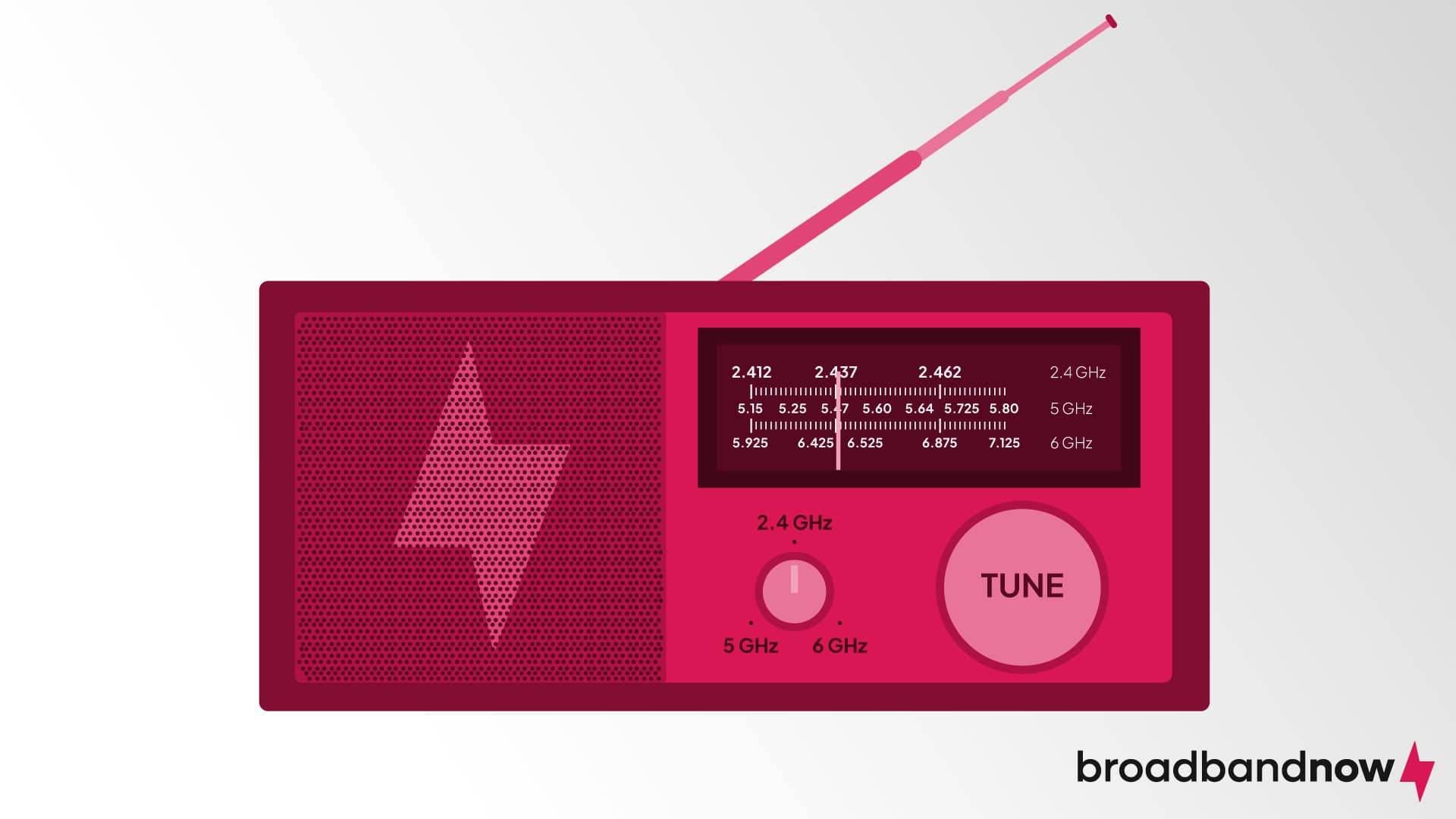
If the term “channels” makes you think of radio stations or TV channels, you’re not far off. The concept is very similar, but we’ll explain exactly how it relates to your Wi-Fi speeds.
Wi-Fi Frequency Bands
Before discussing Wi-Fi channels, we need to talk about frequency bands, also known as radio bands. When you connect to the internet, your router communicates with your device by sending wireless data through radio waves. Most routers will transmit this data using one of two radio frequencies: 2.4 GHz and 5 GHz in accordance with FCC guidelines and authorizations. If you have a newer router, you might have a third frequency: 6 GHz. Single-band routers on the market offer only the 2.4 GHz frequency band. However, most people have dual-band routers with a second frequency band called 5 GHz.
Imagine your home router as a radio. When you turn on a radio in your car or a portable radio at home, it receives signals from a nearby tower and transmits information to your device. Switching frequency bands on an internet router is like switching radio stations. Both actions require you to tune in to a specific frequency to receive certain radio signals. In other words, frequency bands are the “radio stations” for routers.
But this begs a new question: Which frequency should you use for the best internet experience? The short answer: It depends. Each frequency has perks and drawbacks, depending on factors like the number of devices and your location in your home.
| 2.4 GHz | 5 GHz | |
|---|---|---|
| Pros |
|
|
| Cons |
|
|
You’ll want to use 2.4 GHz if you are farther from your router and don’t mind slightly slower speeds. If you need faster internet and can move closer to your router (or your nearest Wi-Fi extender/node), we suggest using the 5 GHz band. If you need a wider range, consider investing in a Wi-Fi range extender, which will give you more mobility and let you connect to the internet wherever you are in your home.
Densely populated urban areas where congestion in the 2.4 GHz and 5 GHz bands is a concern, or homes using Wi-Fi 6 or Wi-Fi 6E, may need to use the 6 GHz frequency. While 6 GHz offers higher bandwidth and data transmission speeds, it may not be essential for the average homeowner.
Wi-Fi Channels
Now that you’ve tuned in to 2.4 GHz, 5 GHz, or 6 GHz, you might notice your speeds slow down after a while. In that case, you will need to fine-tune your router to improve the signal by choosing the right Wi-Fi channels for each frequency.
Within each Wi-Fi frequency band are smaller bands, each with a set width; these are the Wi-Fi channels. The right channels will provide faster internet speeds, as other channels can become congested due to traffic. Each frequency has a specific number of channels: 2.4 GHz has 14 channels, 5 GHz has roughly 45 channels, and 6 GHz has 59 channels. Keep in mind that you’ll only have access to the 6 GHz channel if you’re using Wi-Fi 6E internet and a compatible router.
Using the radio analogy again, you can imagine the Wi-Fi channels as fine-tuned versions of radio stations. Let’s say that station 98.7 is your default station. Some days, you may find that the duplicate station channel 98.9 gives you a better signal than 98.7, while other days, 98.7 comes in perfectly clear. Depending on where you are and your signal from the radio transmitter, you have to adjust the channel to a specific frequency to get the clearest radio signal (or, in the case of the internet, the fastest speed).
| Frequency | Number of channels |
|---|---|
| 2.4 Ghz | 14 |
| 5 Ghz | 25 |
| 6 Ghz | 59 |
Of the channels listed, some are non-overlapping. You’ll get faster, more reliable speeds than with other channels within each frequency band. Listed below are the frequency bands and their respective non-overlapping channels.
| Frequency | Best non-overlapping channels |
|---|---|
| 2.4 Ghz | 1, 6, 11 |
| 5 Ghz | 36, 40, 44, 48 |
| 6 Ghz | 5, 21, 37, 53, 69, 85, 101, 117, 133, 149, 165, 181, 197, 213, 229 |
What Causes Wi-Fi Interference?
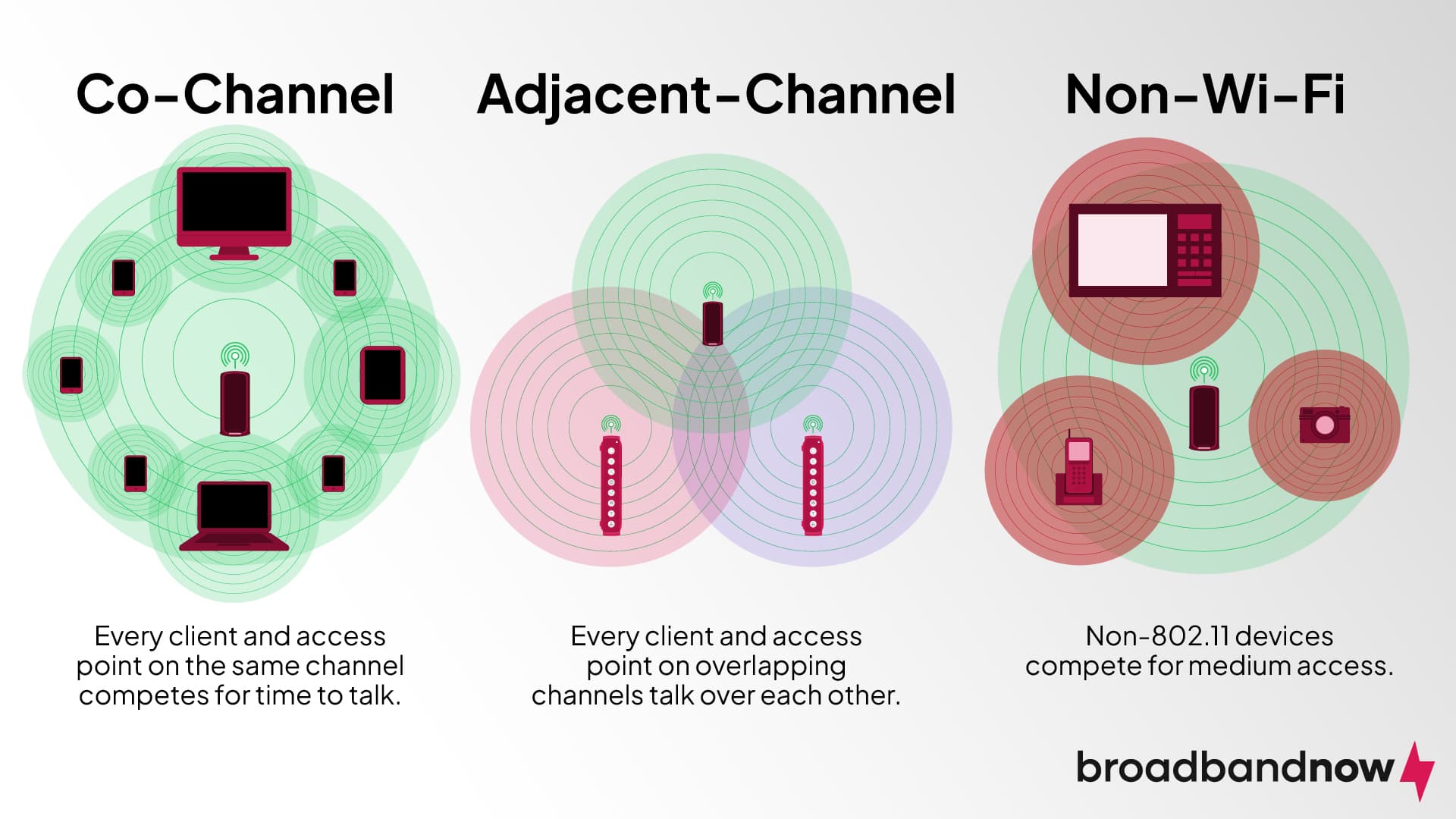
Taking the time to pick the best Wi-Fi channel for your devices is a good way to deal with Wi-Fi interference. When that happens, radio signals overlap, disrupting the connection to your devices.
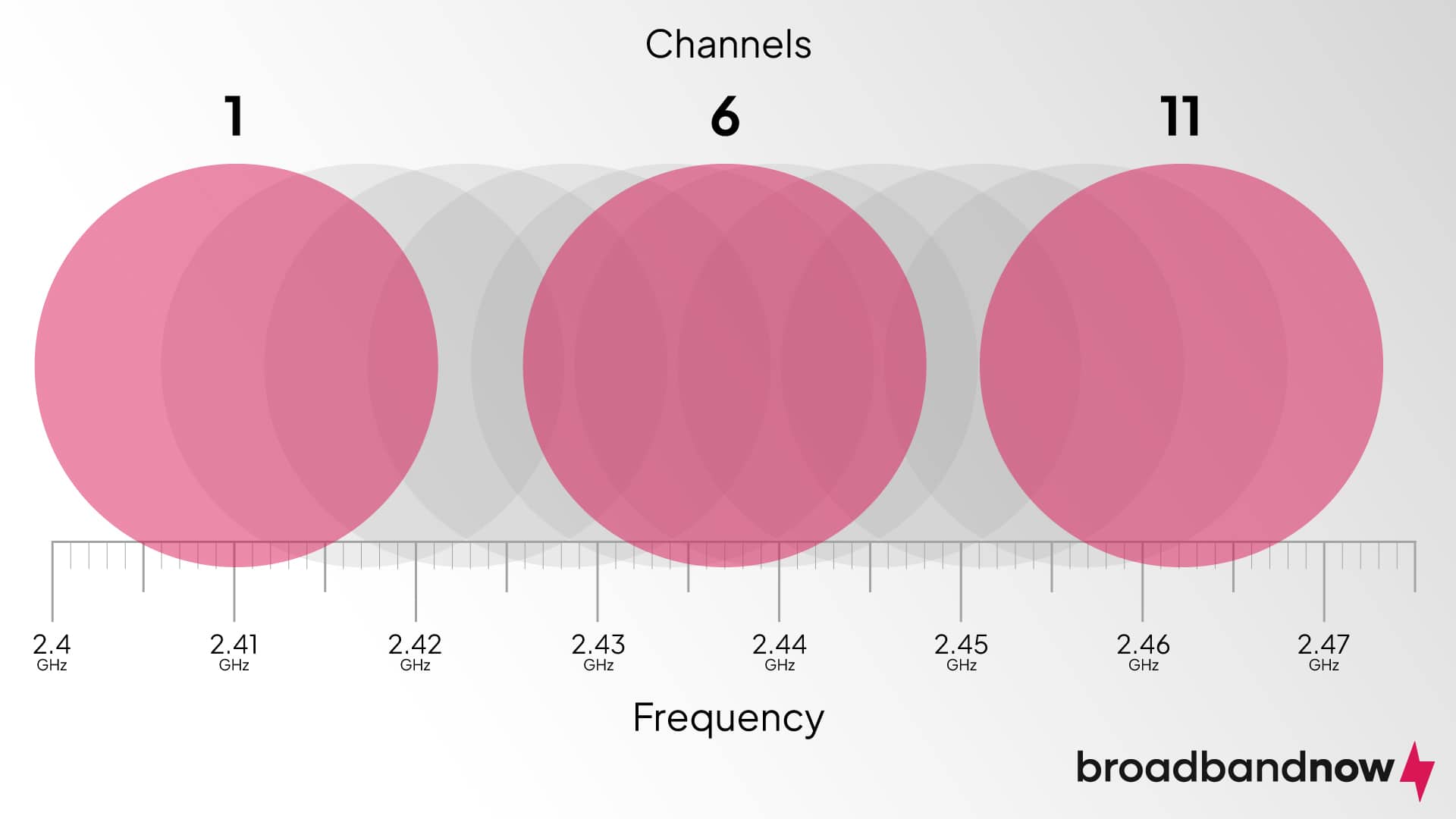
But where exactly does interference occur? As mentioned earlier, the 2.4 GHz frequency band has 14 channels, each with a 20 MHz channel width. Each channel has to intersect with one another to fit inside the 2.4 GHz frequency band, which results in overlapping. Tuning into a channel overlapping with another can cause Wi-Fi interference, resulting in a drop in Wi-Fi speeds.
However, three channels within the 2.4 GHz frequency band do not overlap with each other: channels 1, 6, and 11. Tuning into one of these three channels can almost guarantee that your connection won’t interfere with other channels within that frequency.
If Wi-Fi interference occurs, it’s usually one of two types. Co-channel interference occurs when multiple users and connections share the same channel and take turns using the network. If these users are on different channels and overlap each other instead, they are experiencing adjacent-channel interference. You can think of co-channel interference as a group of people in a meeting where everyone waits their turn before speaking, whereas adjacent-channel interference is similar to a group of people talking over each other. Although both types of interference are bad for internet connections, you’ll want to avoid adjacent-channel interference as much as possible.
Many factors can cause Wi-Fi interference and slow down your internet speeds. Here are some reasons why you might have Wi-Fi interference in your home:
- You have multiple devices in your house on the same frequency. Routers are not the only devices that can transmit radio signals. Electronics like microwaves, portable heaters, and cordless telephones can transmit signals at 2.4 GHz, the same frequency as a single-band router. Unless you only use one device at a time, using all of these devices simultaneously could cause Wi-Fi interference, which can slow your internet down or even disconnect you from the internet.
- You’re tuned into an overlapping channel. As mentioned earlier, the 2.4 GHz frequency band has three non-overlapping channels: 1, 6, and 11. If you tune in to any other channel, however, you might find yourself in the middle of Wi-Fi interference that can impact your connection speeds.
- Physical objects are blocking the signals from your router to your devices. Is your router inside a cabinet? Are there objects placed in front of or around it? If so, these objects may be blocking the Wi-Fi signal and could be the culprit behind your Wi-Fi interference.
What Are the Best Wi-Fi Channels?
So, which Wi-Fi channels are the best ones for your internet? We’ve listed some non-overlapping channels within the frequencies below that offer fast internet speeds with little to no interference. Finding the best channel depends on several factors, such as the time of day, frequency band, and the number of devices in use.
Best Wi-Fi Channels for 2.4 GHz
The best Wi-Fi channels on the 2.4 GHz band are 1, 6, and 11. While all 14 channels overlap, channels 1, 6, and 11 are the only non-overlapping channels, meaning their bandwidths do not interfere with each other.
Best Wi-Fi Channels for 5 GHz
The 5 GHz frequency band is much wider than 2.4 GHz, so there is more room for non-overlapping channels. The 5 GHz band has about 24 non-overlapping channels, far more than the 2.4 GHz band. You could use any of the 24 channels available, but we recommend using channel 36, 40, 44, or 48 for the least interference.
Best Wi-Fi Channels for 6 GHz
Similar to the 5 GHz band, the 6 GHz band offers even more channel options, which also means more non-overlapping channels available due to the extended bandwidth (almost double what you’d find in either a 2.4 GHz or a 5 GHz frequency band). While it’s more than capable of transferring large amounts of data, it does have its drawbacks. This frequency band is compatible with Wi-Fi 6 or Wi-Fi 6E devices only. Additionally, it has a shorter range than 5 GHz, so any data transfers would have to occur at a very close distance (within the same room, for example). That said, some of the best Wi-Fi channels for the 6 GHz band are 37, 69, 117, 181, and 213.
Default Wi-Fi Channels: Routers will often default to a specific channel. For the most part, it will come from the slowest frequency band (2.4 GHz). You can manually change this to a different channel within the same band or switch to a 5 GHz or 6 GHz band if you experience any Wi-Fi interference.
How Do You Find the Best Wi-Fi Channel for Your Home?
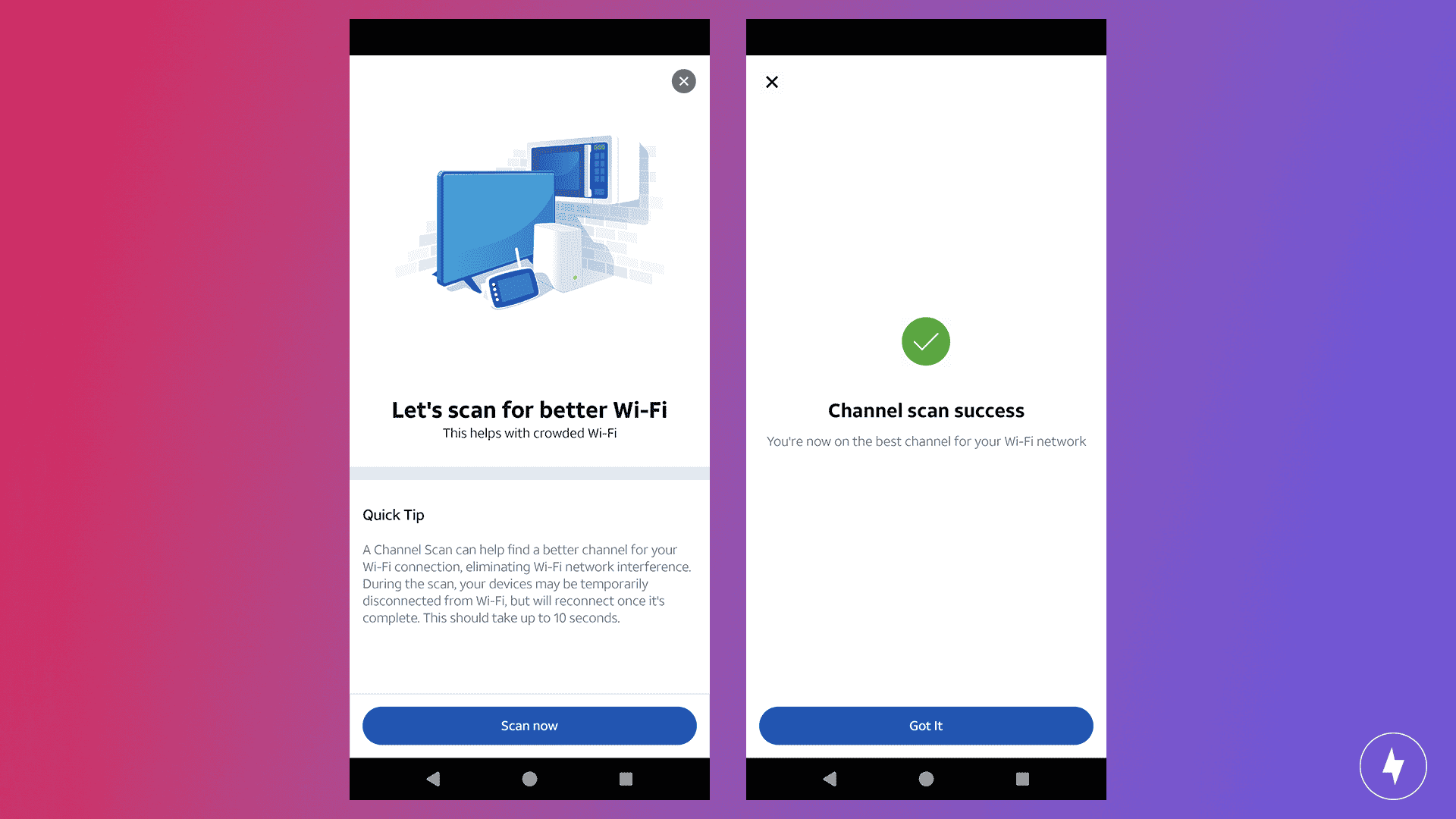
Like fine-tuning a radio, you can manually choose a Wi-Fi channel and test whether it’s fast enough, but a better option is to use a tool that assesses traffic levels on each channel in your network. Many phone apps can analyze your Wi-Fi connection and show you which channel provides the fastest internet speeds. For Android users, here are some of our favorites:
- WiFi Analyzer: One of the most popular apps on the market, WiFi Analyzer checks your connection to see which channels have high or low traffic and shows changes in real time through time graphs and channel charts.
- WiFi Meter: Wi-Fi signal, frequency, and channel are just a few pieces of information you’ll get when using WiFi Meter. You’ll be able to see the signal strength of your internet connection in real time as well.
- WiFiAnalyzer: Spelled as one word, WiFiAnalyzer helps locate the best Wi-Fi channel by offering channel ratings, giving users a better idea of which channels to use at specific times.
How to Use WiFi Analyzer to Select the Best Wi-Fi Channel
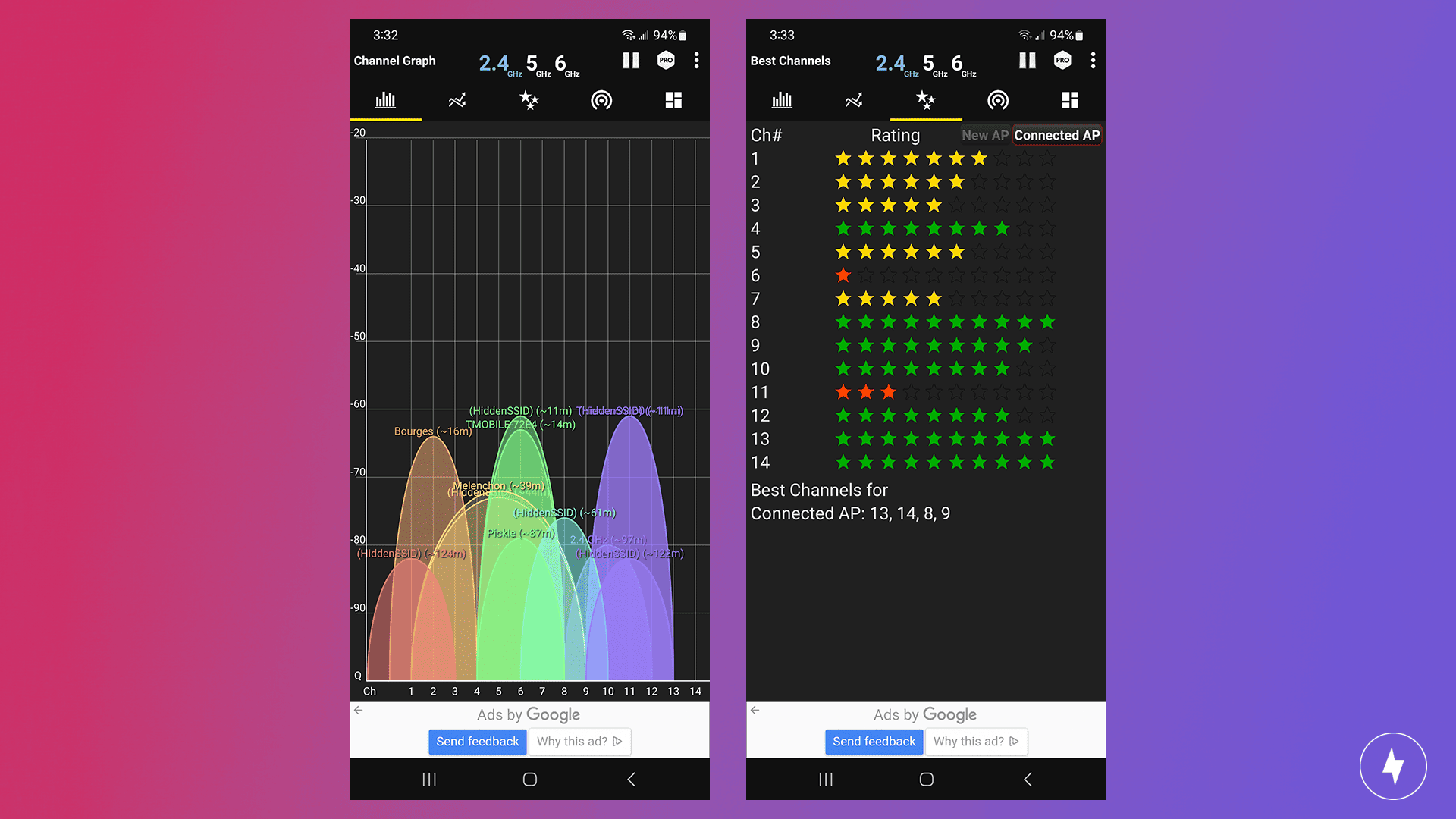
Because of its high ratings and positive reviews, we chose WiFi Analyzer to see whether it could help us find the best Wi-Fi channels for our internet connection. We took the following steps to make it happen:
Step 1: Download the app.
Search for the app on Google Play and download it to your phone. We were glad Wi-Fi Analyzer was free, since other apps require a purchase (though it does include ads).
Step 2: Open the app and allow location permission.
Similar to other apps, Wi-Fi Analyzer requires location permission. It will use it only to scan your Wi-Fi. It does not collect your location or track you.
Step 3: Use the tabs at the top of the app screen to switch between windows.
You can toggle between the channel graphs, time graphs, channel ratings, and access points displayed within the app.
Step 4: Using the information provided, toggle the channel settings on your device.
Once you’ve found which Wi-Fi channel offers the best internet speeds, use your device settings to select your frequency band and choose your preferred channel. Based on that data, you can then go into your router and change your Wi-Fi channel for optimal performance.
What If Changing Your Wi-Fi Channel Doesn’t Improve Speeds?
Sometimes, changing the Wi-Fi channel might not affect your internet speeds. If that’s the case, you’ll have to troubleshoot your Wi-Fi. Consider the following tips to see if they fix your connection issues.
- Make sure you’re connecting to the correct frequency band. Routers commonly default to the 2.4 GHz frequency band. If you’re trying to connect to a 5 GHz or 6 GHz frequency, check the settings to confirm that your device did indeed switch over.
- Check to see if you switched to the correct Wi-Fi channel. If you’re on the correct frequency band, make sure you’ve switched to the correct channel. Since channel traffic can change over time, you might need to switch again once or twice before experiencing faster speeds.
- Move physical objects between your device(s) and the router. Interference doesn’t just happen within frequency bands. If objects are between you and the router, try moving them around to clear a path.
- Consider upgrading your internet connection. When all else fails, you may want to consider upgrading your internet plan. You might need more bandwidth or a stronger signal, both of which a stronger internet connection can provide.
Frequently Asked Questions About Wi-Fi Channels
Do routers automatically change channels?
Yes, modern routers are equipped to automatically select the best Wi-Fi channel to avoid interference, especially in crowded environments. The router scans available channels and chooses the least congested one. However, not all routers support this feature, and sometimes you need to adjust it manually to optimize performance. Interference from neighboring networks, devices, or even physical obstacles can affect the Wi-Fi signal quality. It’s a good practice to check and adjust channels as needed.
What is the difference between channel and bandwidth?
Wi-Fi channels help avoid interference by separating signals in the same frequency range. Bandwidth refers to the capacity or amount of data that can be transmitted over a network in a given time. A wider channel lets more data flow at once, improving speed and bandwidth, such as 20 MHz or 40 MHz.
How do you access router settings?
To access your router settings, log into the router’s web interface. Connect to your network, either wired or wireless, and open a web browser. Enter the router’s IP address in the address bar, then enter the router’s username and password when prompted. You can usually find this information on the router’s label or in the manual. Once logged in, you can configure various settings, including Wi-Fi channels and other options such as the network name and security settings.
Does 5 GHz go through walls?
The 5 GHz frequency band has a shorter range than 2.4 GHz, and its signal is more easily absorbed or blocked by walls and physical obstacles. While 5 GHz offers faster speeds and less interference, it doesn’t penetrate walls and other barriers as effectively as the 2.4 GHz band. 5 GHz is ideal for close-range, high-speed connections, but performance may degrade if several walls or floors are between the router and the device.
Which Wi-Fi channels are the best for gaming?
For gaming, it’s best to use the non-overlapping Wi-Fi channels in the 5 GHz or 6 GHz frequency band. Wi-Fi channels within these frequency bands will ensure a fast and reliable internet connection that won’t interrupt your gaming sessions.
Which Wi-Fi channels are the best for streaming?
If you plan to stream in 1080p or higher, you can use non-overlapping channels in the 2.4 GHz frequency band. However, if you plan to stream in 4K and don’t want to deal with issues like buffering, we recommend switching to the 5 GHz frequency band or, if applicable, the 6 GHz frequency band.
Are there routers that can auto-select the best Wi-Fi channels?
Yes, there are routers available on the market that can auto-select the best Wi-Fi channels for your internet connection. This means that instead of configuring it manually, the router will automatically choose a Wi-Fi channel with the least interference.
Is channel bonding good for home Wi-Fi?
Channel bonding can help if you want faster internet speeds at home. However, it uses more power and resources, so make sure your router is powerful enough to handle multiple channel bonds.