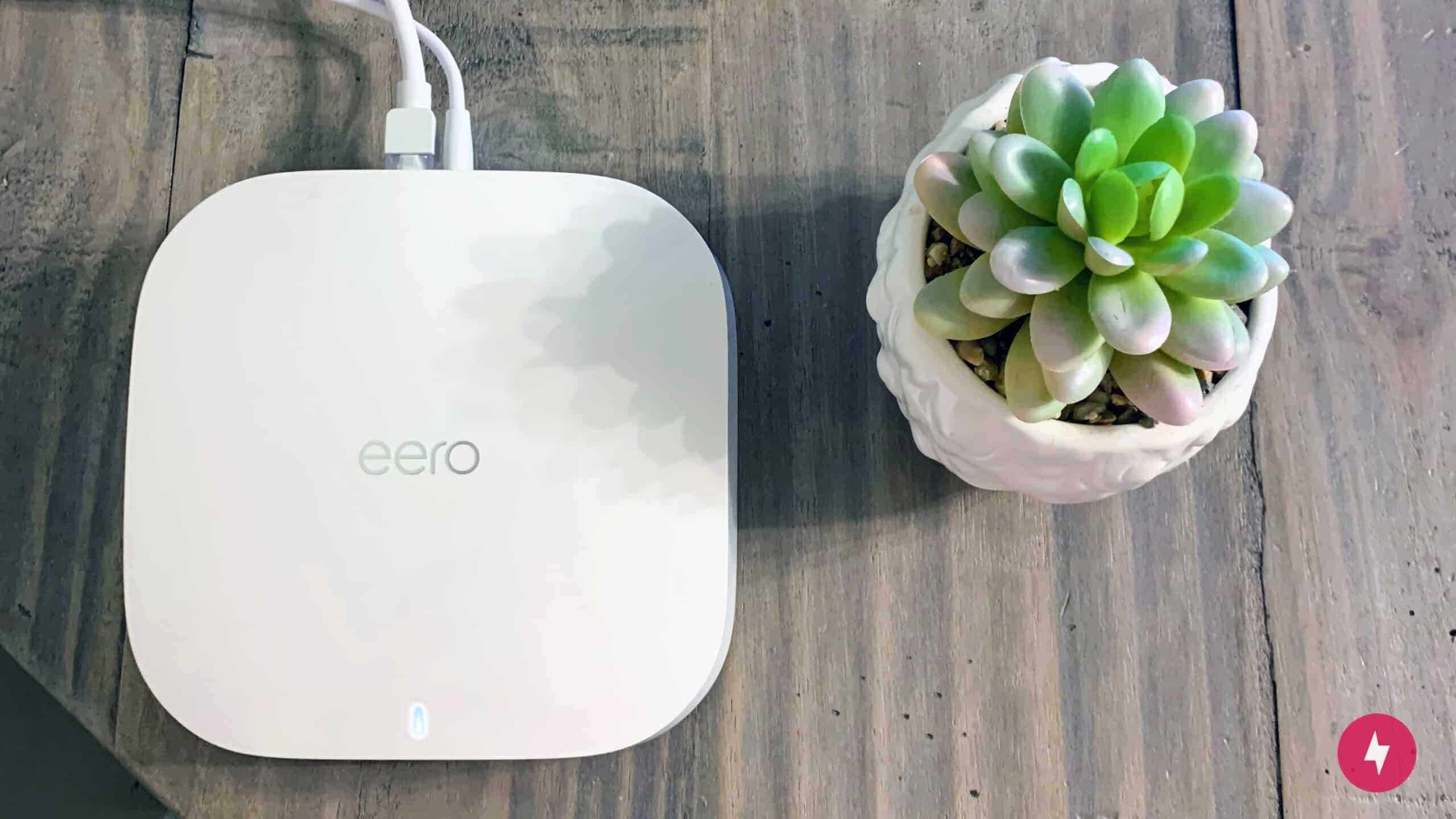
We love the easy setup of the eero Pro 6, but the lack of significant internet speed leaves something to be desired. (Photo by Kate Fann)
Originally released in 2020, the Amazon eero Pro 6 was a groundbreaking mesh Wi-Fi system for families. However, with newer systems available at cheaper price points, does it still live up to all the hype? We got hands-on with the eero Pro 6 setup to see where it stands against current routers in terms of specs, setup, price, performance, and value.
What We Like
High square footage coverage is ideal for large households
Signal customization options
Compatible with Wi-Fi 6 for future-forward setups
What We Don't Like
Somewhat pricey compared to similar mesh systems
Limited to only 1 LAN port
BroadbandNow Bottom Line
The eero Pro 6 is incredibly easy to set up, even for the non-tech-savvy homeowner. However, the increase in internet speed is not significant compared to the cost of the device. Still, for $299.99 at eero (2-pack), the eero Pro 6 is worth the investment if you live in a large household and prefer tri-band Wi-Fi with a simple and modern aesthetic.
Eero Pro 6 at First Glance: Powerful and Affordable
Let’s start with what everyone wants to know: the price. At just $299.99 for a 2-pack, the eero Pro 6, on the surface, carries a reasonable price for a whole-home mesh Wi-Fi system with tri-band radio frequencies, 3,500 square feet of coverage, and AX4200 speeds. However, since this iteration didn’t truly have any additional upgrades from the 2020 version (outside of software changes), the price isn’t necessarily as good as it may seem for a three-year-old device.
Compared to its competitors in the space, the eero Pro 6 is middle of the road in terms of value. While the eero Pro 6 might have the advantage of faster speeds, the TP-Link Deco X20 comes in a 3-pack and has a more affordable price tag with a similar minimalist design. That said, the eero Pro 6 is cheaper than the Asus ROG Rapture GT6 and the Netgear Orbi AX4200 systems, which will cost you north of $300 for two or three devices, respectively.
Outside of its fair pricing, substantial coverage, and quick gigabit speeds, we applaud the eero Pro 6 for its smart home features, including Zigbee and Alexa integrations (even though we didn’t find talking to the router immensely helpful through Alexa). We also loved the sleek shape of the device and its clean appearance. Since you’ll be placing it in the open for the best performance, it’s nice not having to compromise your network quality for an unsightly and unwieldy device that clashes with your home design (we’re looking at you, Asus ZenWiFi AX XT8). In comparison, the newest eero 6+ model features an even smaller size, which could allow you more freedom in terms of placement without losing that aesthetic appeal.
Overall, the specs and features of the eero Pro 6 were relatively impressive compared to other devices in its price range. The only major drawbacks of the eero Pro 6 were its lack of QoS settings, a 160 MHz bandwidth, and a proper USB port. Otherwise, the eero Pro 6 had almost everything we look for in a mesh Wi-Fi router.
Eero Pro 6 Installation: Quick, Easy, and Effortless
Setting up an eero Pro 6 device is easy enough for the average homeowner to complete. (Photo by Kate Fann)
One thing that sets eero apart from other mesh Wi-Fi routers is its straightforward setup. Installing and setting up the eero Pro 6 could not have been easier. I effectively set up the system in less than 30 minutes with two young children intently watching (and asking a plethora of questions).
Unboxing and the Initial Setup
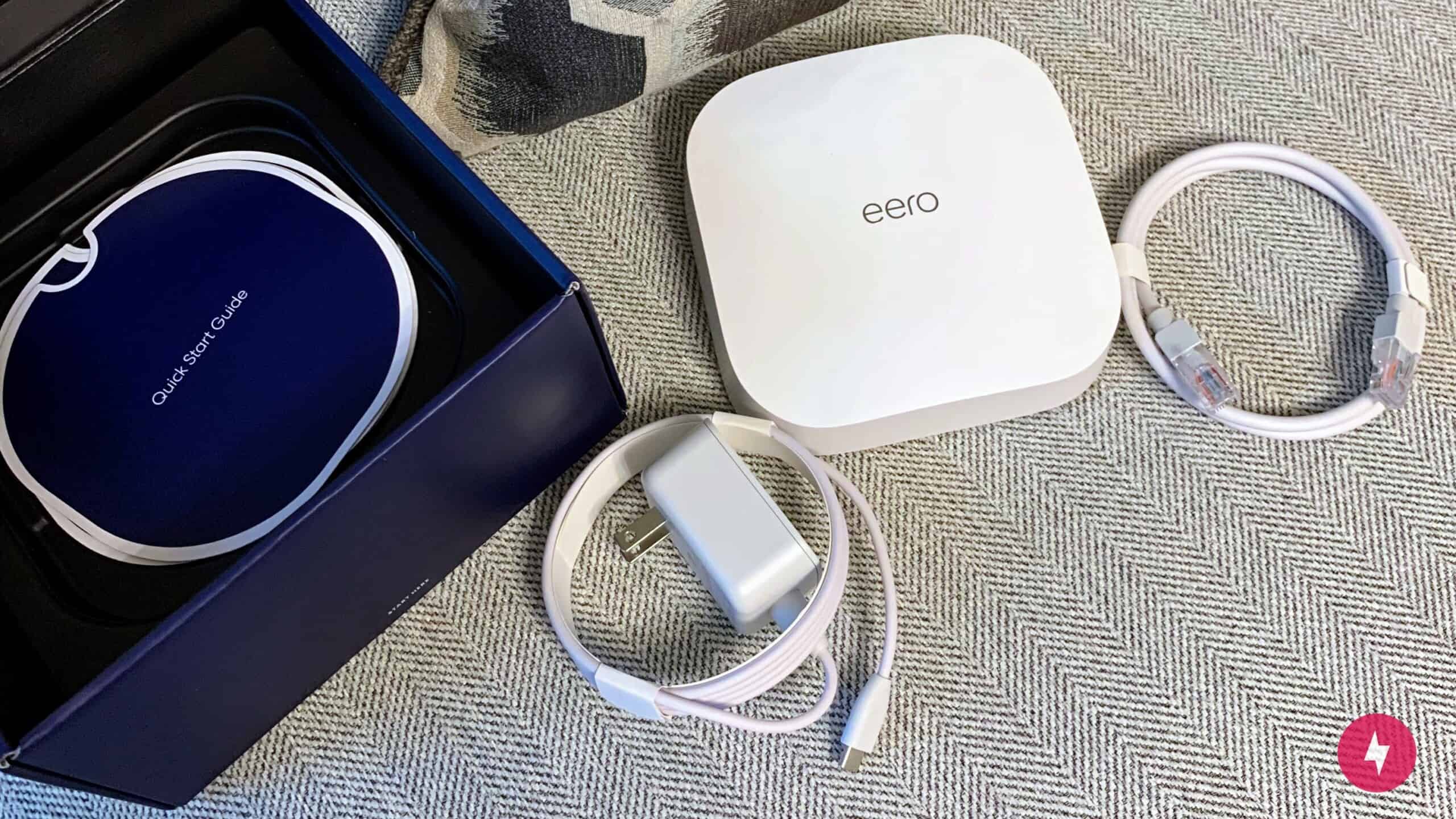
Setting up technology can often feel intimidating, especially with the amount of wires, devices, and information provided. With the eero, simplicity was the name of the game the second I opened the box. Tucked neatly inside, the eero Pro 6 itself sat inside a cardboard insert. Underneath were three simple instruction sheets, and beneath those were two cords: one power cord and one Ethernet cord. Despite being an advanced type of product, I didn’t feel overwhelmed about unboxing or installing it.
All it took was 10 minutes from start to finish to get my first eero Pro 6 device up and running. (Photo by Kate Fann)
The inner pamphlet outlined a quick four-step process for installing the eero device, starting with downloading the eero app. The app features a straightforward, step-by-step process from start to finish. Once I installed the app, it took exactly 10 minutes to get the device plugged in and operating. There wasn’t a single step in the process that confused me or gave me pause (except for maybe picking the best place for me to put it).
Placing the Routers
Each step of the eero Pro 6 setup was guided by the eero app. (Screenshots by Kate Fann)
Living in a single-family home with two floors, I purchased the two-pack of eero Pro 6 devices, one for the first floor and one for the second. Depending on the size of your home, you might need more than one per floor, but this coverage was plenty for my household. I set up the first eero Pro 6 device in my living room, which is the center of my home and the location of my current modem. Eero devices work best when they are in the open and not close to other electronics.
I set up the first eero Pro 6 device in my living room, which is the center of my home and the location of my current modem. Of course, I could relocate my modem, as you might wish to do, but I didn’t find it necessary. The initial eero device you set up will need to stay connected to the modem, but you don’t have to keep them side by side, and eero typically advises against this practice. Eero devices work best when they are in the open and not close to other electronics.
My current internet setup resides in my TV stand behind a closed door (I know it’s not the best setup, but I like it that way). I chose to keep my modem in this location, but I placed the eero Pro 6 on top of the TV stand beside my TV, careful not to put it underneath it. The wire connecting the eero to the modem and outlet was relatively easy to hide behind the furniture.
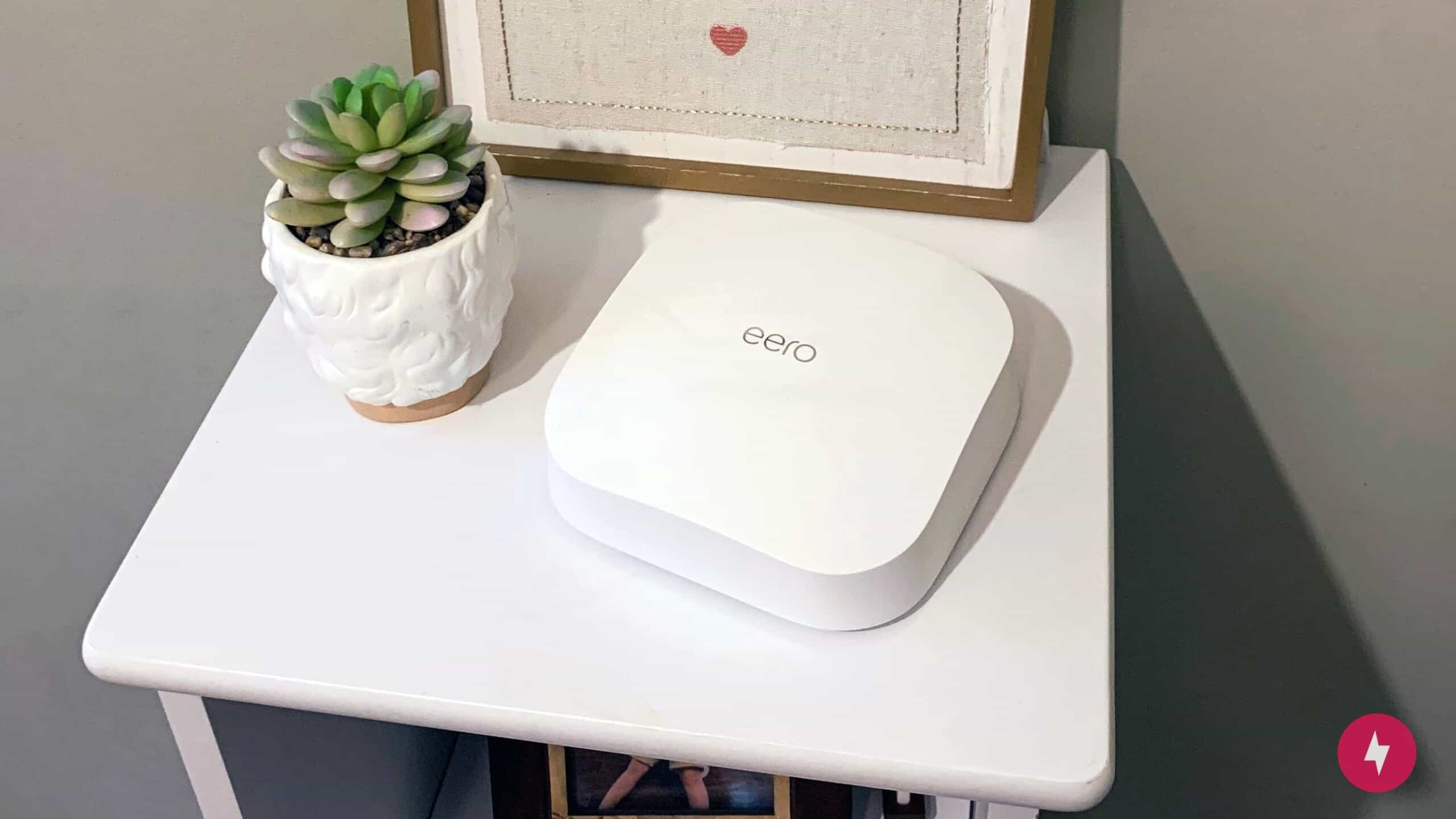
Since the eero Pro 6 doesn’t take up much space, you can place it just about anywhere. (Photo by Kate Fann)
Setting up my second eero Pro 6 satellite device took about two minutes less than the first and was just as easy to install. I positioned this router in my upstairs hallway, next to our bedrooms. One of my favorite features from the setup process was how eero provided tips on choosing the perfect spot. It even confirmed that my hallway placement was sufficient.
Navigating the Mobile App
Eero helps ensure you efficiently place your devices for maximum coverage. (Screenshots by Kate Fann)
After I installed the main eero Pro 6 and the satellite router, the eero app prompted me to update the devices to access the latest software. This process took less than 15 minutes to complete, but you never want to skip it because the initial updates usually include patches for security and reliability. From there, I was ready to start surfing the internet.
While the device updated, the app prompted me to take advantage of eero Plus for a yearly rate of $99.99. There’s also the option to choose a monthly rate of $9.99. I wasn’t thrilled to find out that you needed this add-on service for parental controls, ad blocking, Malwarebytes, password services, and internet backup.
While eero Plus was necessary for its added features, paying extra each month was a major letdown. (Image from Amazon eero)
First of all, most modern mesh Wi-Fi routers come equipped with many of these features out of the box. Second, I need parental controls and additional security for my household with two children. In all reality, I have to subscribe to eero Plus to make the eero Pro 6 a viable product, which lessens its value compared to other mesh Wi-Fi routers.
Once I installed and updated the devices, logging into the network was a breeze. The process is the same as it would be for logging in with your current internet service provider. During installation, you can create a Wi-Fi network name and password inside the app. You’ll use this information to gain internet access on all your devices and then be good to go. It could not have been more straightforward.
Eero Pro 6 Performance: Not a High Achiever
The internet signal in the dining room showed the most significant change after installing both eero devices. (Screenshots by Kate Fann)
While setting up the eero Pro 6 was a breeze, installation is just one part of getting a mesh Wi-Fi router. Next, I moved to testing the eero Pro 6 to see if its straightforward setup transferred into the real world of internet usage.
Testing the System
Before installing the eero Pro 6 system, I tested my current internet speeds as a baseline. My internet service provider is Spectrum, and my plan advertises download speeds up to 500 Mbps and upload speeds up to 25 Mbps. As a cable internet provider, Spectrum’s speeds can vary by time of day and network usage. Consequently, I made sure to do each series of tests during the same time periods. Overall, even though I ran these tests at different times of day, the speeds didn’t differ significantly, as my connection was slightly above or below the advertised 500 Mbps speed.
After installing the eero devices, I reran the speed tests and found disappointing results. I tested speeds in eight different areas around my home at differing ranges, and the eero Pro 6 routers only outperformed the router provided by Spectrum in three locations, which was not ideal.
The increase in speed on the outdoor first-floor deck was only slightly higher with the eero device. (Screenshots by Kate Fann)
The two areas with the most significant decrease in internet speed were (understandably) at the farthest corners of my house on the first and second floors. The internet speeds in the most distant first-floor room decreased by 12 percent, while the speeds in the farthest second-floor room showed an 8 percent decrease. The only places I saw an improvement were the locations I tested that were extremely close to the eero Pro 6 devices. This included my dining room and the first-floor deck — both of which are right near the living room where I positioned the first device.
During a test under heavy traffic conditions, 15 ft from the main node, my Spectrum router achieved 470 Mbps download speed. Under the same conditions in the same area on the Eero Pro 6, download speeds increased, recording 539 Mbps. Outside on the first-floor deck, my Spectrum router recorded a download speed of 554 Mbps, and with the Eero Pro 6, I saw a marginal increase to 566 Mbps.
In performing these tests, I upgraded my Spectrum internet plan from 300 Mbps to a 500 Mbps connection to get the best possible results. While I did see some increases in internet speed with the faster plan and the eero Pro 6 routers, the gains (or lack thereof) were not enough to make it a must-have device. If you have gigabit internet, you might see more significant benefits, but for average users with sub-gigabit speeds, the eero Pro 6 just doesn’t have enough throughput to be a top contender.
Comparing the Competitors
Compared with similar devices from Asus, TP-Link, and even Google, the eero Pro 6 doesn’t perform nearly as well as it should. For example, the Asus ZenWifi AX XT8 features similar specs, such as Wi-Fi 6 and tri-band speed, and countless tests have shown its ability to deliver consistently higher internet speeds based on users’ bandwidth. (Also, it comes with those parental controls security features we bemoaned earlier that were missing with eero Plus.)
At less than $200 for the setup, the Asus ZenWifi AX XT8 is already about $100 less than the cost of the Eero Pro 6 device alone. With the Eero Pro 6, if you’re including the Eero Plus subscription, you’re looking at an additional cost of $99.99 per year or $9.99 per month to access features the Asus device already offers. Over two years, that’s a lifetime cost of $500 if you choose the yearly price plan or $540 if you opt to pay for the service monthly.
Here’s how the eero Pro 6 compares to other eero models and similar mesh Wi-Fi systems.
Mesh system
Wi-Fi standard and bands
Max speeds
Coverage (3 nodes)
Total Ownership Cost
Best for
Eero Pro 6
Wi-Fi 6, tri-band
Up to 1 Gbps
6,000 sq. ft.
$299.99 + $99.99 per year for eero Plus
Families using multiple devices simultaneously
Eero Pro 6E
Wi-Fi 6E, tri-band
Up to 1.6 Gbps
6,000 sq. ft.
$379.99 + $99.99 per year for eero Plus
Large homes with multiple smart home devices
Eero 6+
Wi-Fi 6, dual-band
Up to 1 Gbps
4,500 sq. ft.
$299.99 + $99.99 per year for eero Plus
Apartments and smaller homes with high-bandwidth use
TP-Link Deco X20
Wi-Fi 6, dual-band
Up to 1.8 Gbps
5,800 sq. ft.
$129.97 + $35.99 per year for HomeShield Security+
Large homes with extensive connected devices
Orbi AX6000
Wi-Fi 6, tri-band
Up to 2.5 Gbps
7,500 sq. ft.
$759.00 + $99.99–$149.99 per year for Netgear Armor
Extremely large households with high-bandwidth needs
Our Verdict: More Amateur Than Pro
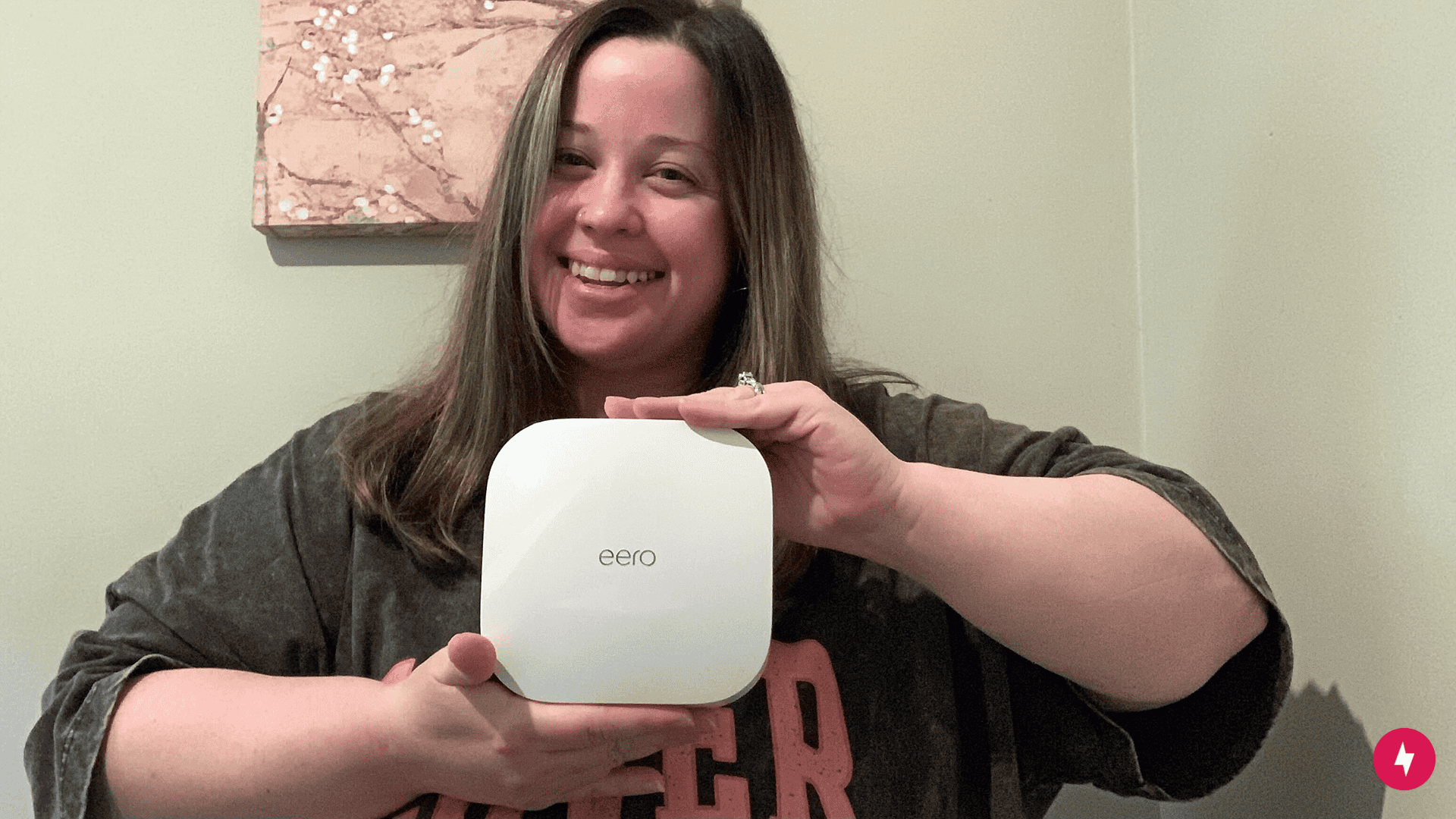
Overall, we enjoyed reviewing the eero Pro 6 system. (Photo by Kate Fann)
The biggest takeaway for the eero Pro 6 is its simple setup and installation. It was truly refreshing to work with such ease on internet equipment, which certainly hasn’t been my experience in the past when it comes to even basic internet services. While this feature is a massive benefit to the device, setting up the equipment is a one-time deal and not the device’s primary function as a whole.
When the eero Pro 6 hit store shelves in 2020, it was probably a great, groundbreaking device. However, with ongoing advancements in new eero devices and competing brands, the eero Pro 6 just isn’t what it used to be, especially given its lack of speed and relatively high price.
So, who do we recommend the eero Pro 6 for? If it goes on sale and you’re a beginner to mesh Wi-Fi routers, the eero Pro 6 could be the right fit for your smaller (or bigger, if the 3-pack is available) household with numerous devices (including Zigbee-enabled smart devices). We don’t recommend it if the price point is above your budget and you want a newer model. Check out the eero 6+ or the eero Pro 6E, as it’s from Amazon, more advanced, and comes with a similar straightforward setup process.
How We Assess Routers
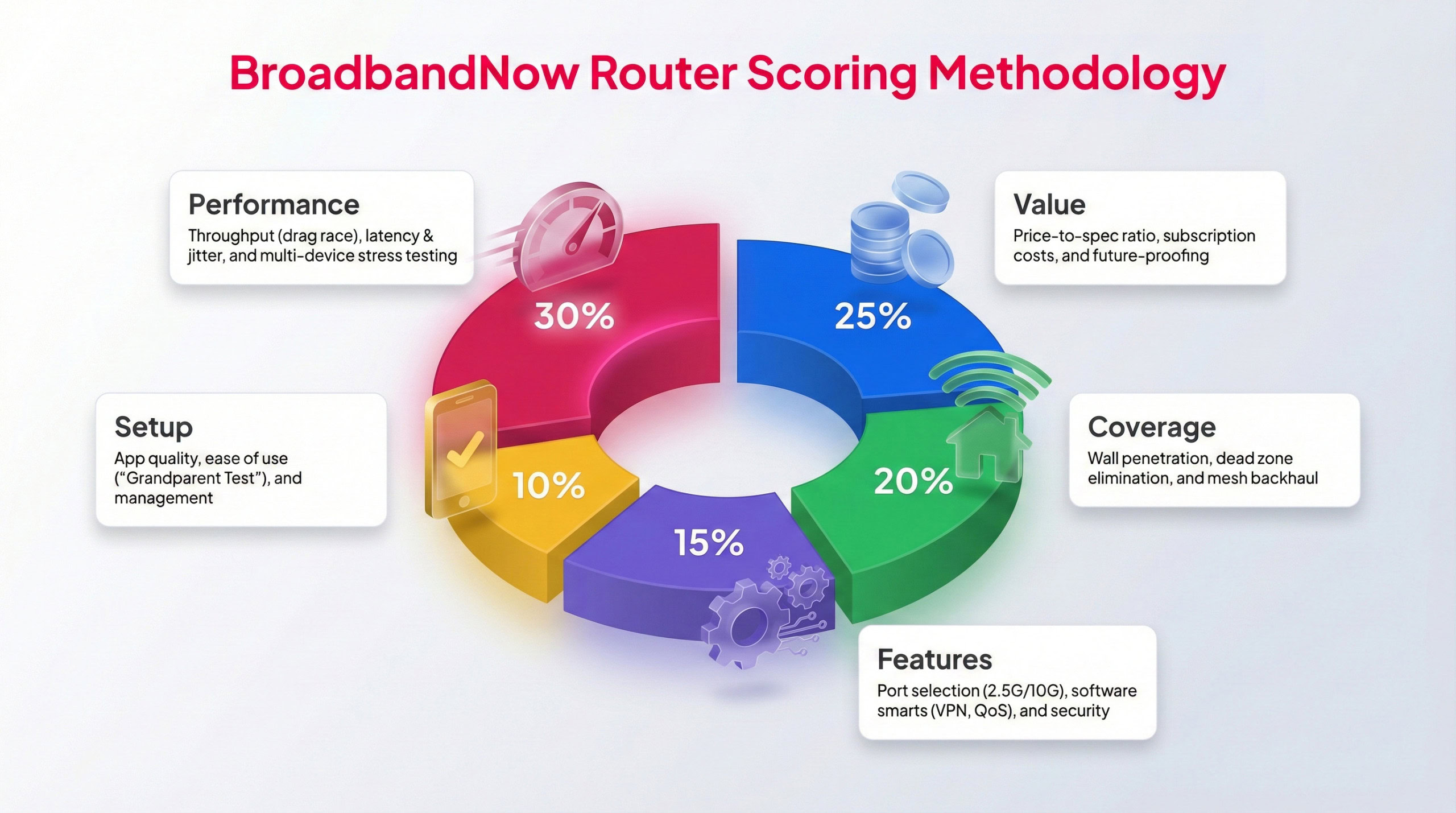
Each BBN expert tests routers following this methodology to provide a weighted score.
We follow a consistent testing process for every router we evaluate to ensure fair comparisons. I tested the Eero Pro 6 under real-world home conditions for one full month, using Speedtest by Ookla to record my download and upload speeds. Throughout that period, I assessed everyday reliability, compared its features versus its price, and how the system handles sustained, high-demand use. Testing included busy evening hours, bandwidth-heavy tasks like streaming and video calls, and speed checks from multiple locations around the house. Tests were primarily conducted on devices such as an iPhone, a Roku streaming device, and a Google Chromebook, with each location being tested up to 3 times.
Each area is rated on a 1–5 star scale using a weighted scoring model. Performance and value are factored in most heavily. Below is a breakdown of our scores across five core categories, along with details on how the eero Pro 6 performed in my two-story home.
Performance – 3.5/5: After testing the Eero Pro 6 throughout my home at various distances from the router during different times of the day, I was ultimately disappointed in how it performed compared to my ISP-provided router. The Eero Pro 6 didn’t reach much higher speeds than my Spectrum router, only delivering faster speeds close to the router. For a 500 Mbps plan, this is less than ideal, though Eero Pro 6 may perform better on gigabit speed plans.
Value – 3/5: When the Eero Pro 6 was first released, its features may have been impressive, but compared to newer Eero upgrades and competing systems, such as the TP-Link DecoX20, you’re not getting anything extraordinary. If you’re curious about starting with a mesh system and find this one on sale, it could be worth trying out, but it’s likely not going to offer the best experience.
Coverage – 4/5: The Eero Pro 6 offers impressive coverage for homes, up to 3,500 sq. ft. While my home tops out at 2,500 sq. ft., I wasn’t able to push coverage to its limits, but it’s worth noting that the system is capable of handling much more. That said, my tests showed lackluster speeds the further away from the main node I moved, so it doesn’t earn top marks despite impressive on-paper stats.
Features – 4/5: For a mesh router, the Eero Pro 6 has just what you’d need to upgrade your setup: tri-band, ethernet ports, gigabit max speeds, and smart home integrations. Aside from a few missing features like QoS settings and a 160 MHz bandwidth (which may not be necessary for the average user), the system has some solid features to keep your setup functional.
Setup – 5/5: Setting up this mesh system through the eero app couldn’t have been simpler. The box included an easy step-by-step guide on using the app, which was very user-friendly. In 10 minutes, I was set up with my main node, and the satellite node took only 8 minutes. We love a system that isn’t too complicated, and this one absolutely delivers on ease, no matter how technologically skilled you are.
Frequently Asked Questions About the Eero Pro 6 Router
Is the eero Pro 6 still good in 2025?
The eero Pro 6, while discontinued, is a perfectly suitable mesh Wi-Fi network in 2025. The device supports Wi-Fi 6, which is still widely used and hasn't yet been pushed out by newer standards like Wi-Fi 6E or Wi-Fi 7. For future-proofing purposes, it would be better to upgrade to an eero Pro 6E, but if you have the Pro 6 and it's working well, there's no reason to upgrade just yet.
Does the eero Pro 6 support Wi-Fi 6E?
Eero Pro 6 doesn't support Wi-Fi 6E. However, the upgraded version of the Eero Pro 6 — Eero Pro 6E — does support Wi-Fi 6E, so if you're looking for a mesh Wi-Fi network with this newest technology, the Pro 6E would be a more suitable choice.
Is the eero Pro 6 worth it?
The Eero Pro 6 can perform well for many homes, even if it doesn't quite live up to comparable systems. It can be a good choice for homes that aren't concerned with future-proofing yet and are comfortable with a device that isn't going to perform above and beyond. While it has been discontinued, for homes still using an Eero Pro 6, there's no reason to stop using it just yet.
Does the eero Pro 6 work without a subscription?
Yes, the eero Pro 6 can function as a mesh Wi-Fi system without a subscription. However, certain features like advanced parental controls, ad blocking, and extra security tools require an eero Plus subscription.
Is the eero Pro 6 backward compatible with older eero devices?
Yes, the Eero Pro 6 can be mixed with older Eero models in the same network. However, the system will adjust performance to match the capabilities of the weakest device.
How does the eero Pro 6 compare to the eero 6+?
The eero 6+ is a newer dual-band model with Wi-Fi 6 and 160 MHz channel support, offering better speed potential in some situations. The eero Pro 6, on the other hand, is tri-band, which can help reduce congestion in larger households.