How to Share a Wi-Fi Password on iPhone, Mac, and Android
Setting up Wi-Fi between devices takes less than a minute.
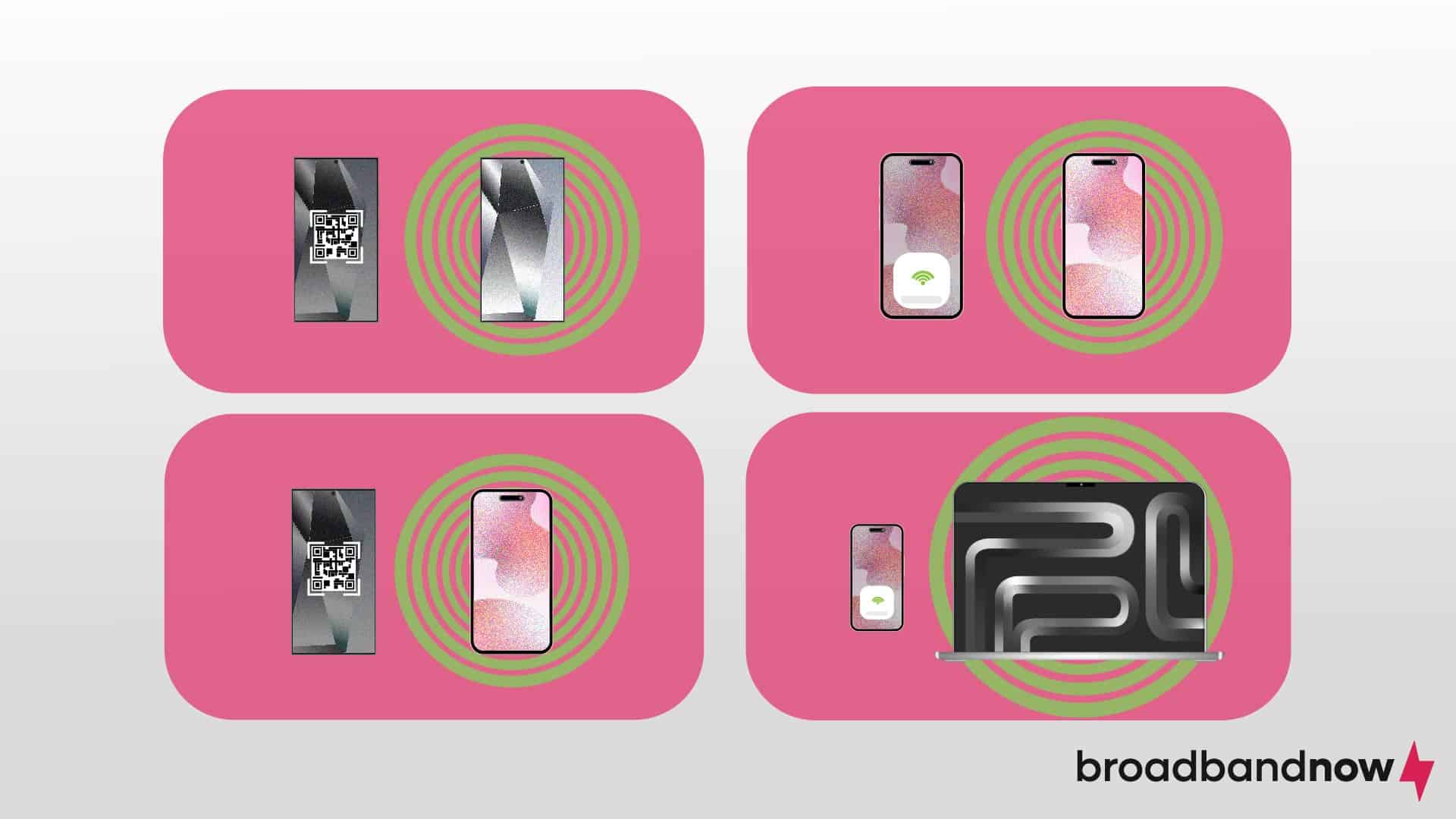
- Apple devices make Wi-Fi password sharing easy using the built-in password sharing feature between iOS and macOS devices.
- Android users can share Wi-Fi passwords by generating QR codes, which requires you to access your network details, generate a QR code, and scan it to connect.
- Generating a QR code is a necessary step for sharing passwords across iOS and Android devices.
Whether at the office or at home, sharing your Wi-Fi password with trusted individuals is often necessary. However, verbally communicating complex passwords can be inconvenient and insecure. The easiest and safest way to share a Wi-Fi password is directly through your device’s built-in features. This guide explains how to share Wi-Fi passwords between iPhones, Macs, and Android devices efficiently and securely.
Table of Contents
- Set Up Devices Before You Start
- iPhone to iPhone
- Mac to iPhone
- Android to Android
- iPhone to Android
- Risks of Sharing Wi-Fi Passwords
Set up Devices Before You Start
Before sharing your Wi-Fi password, ensure both devices are properly configured:
- Turn off personal hotspots on both devices.
- Turn on both devices’ Wi-Fi and Bluetooth. If you run into issues with your Wi-Fi network, troubleshooting Wi-Fi should be easy. In some cases, restarting the devices and reconnecting to the network can solve the problem.
- Make sure both devices are within Wi-Fi and Bluetooth range.
iPhone to iPhone
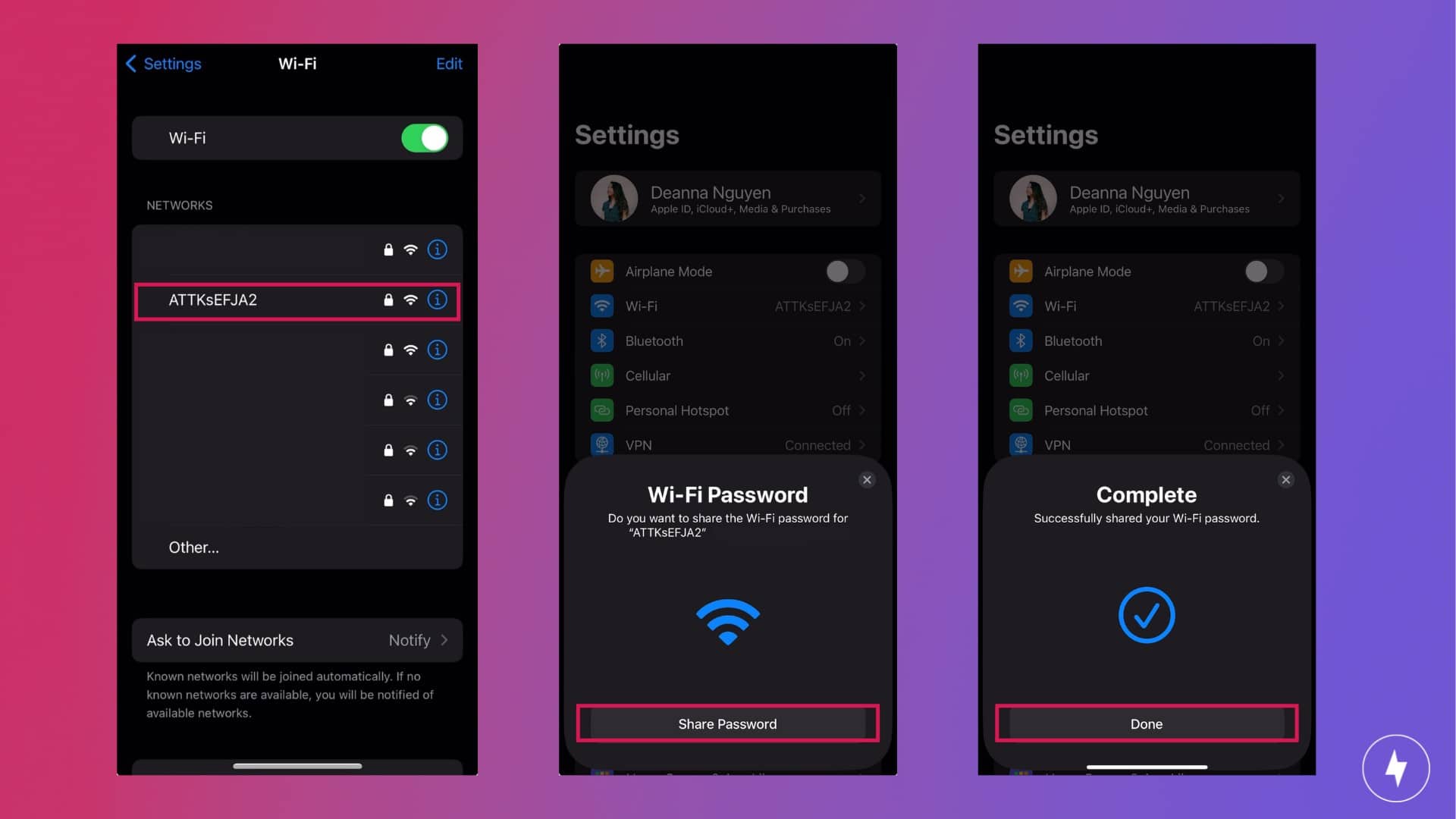
Sharing a Wi-Fi password between iPhones is straightforward when both devices run iOS 11 or later. Before you start, verify that both iPhones have the latest iOS software update installed. If they’re both up to date, follow these steps:
- Add each other to Contacts via Apple ID email addresses.
- Go to Settings.
- Tap on Wi-Fi.
- Tap the correct Wi-Fi network.
- Wait for the Wi-Fi Password pop-up to appear on the other iPhone.
- The other iPhone user should then tap Share Password.
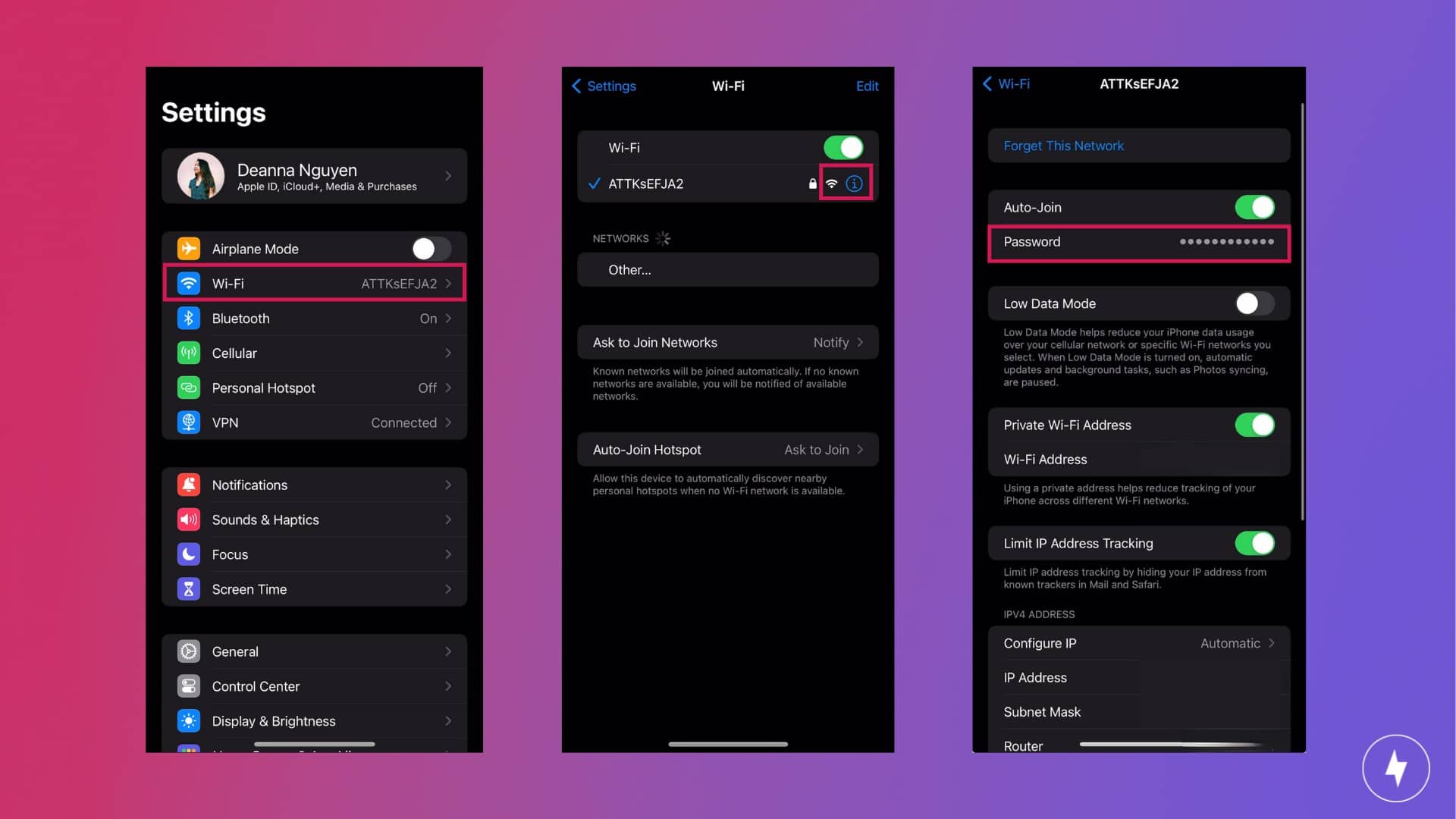
If the automatic sharing method doesn’t work, the person sharing the Wi-Fi password can manually reveal and share it using these alternative steps:
- Go to Settings.
- Tap on Wi-Fi.
- Tap the info icon next to the Wi-Fi symbol of the correct Wi-Fi network.
- Tap the password to reveal it.
- Copy the password.
- Text or show the password to the other iPhone user.
Check out our video and follow along with all the steps on how to share your Wi-Fi from iPhone to iPhone:
Mac to iPhone
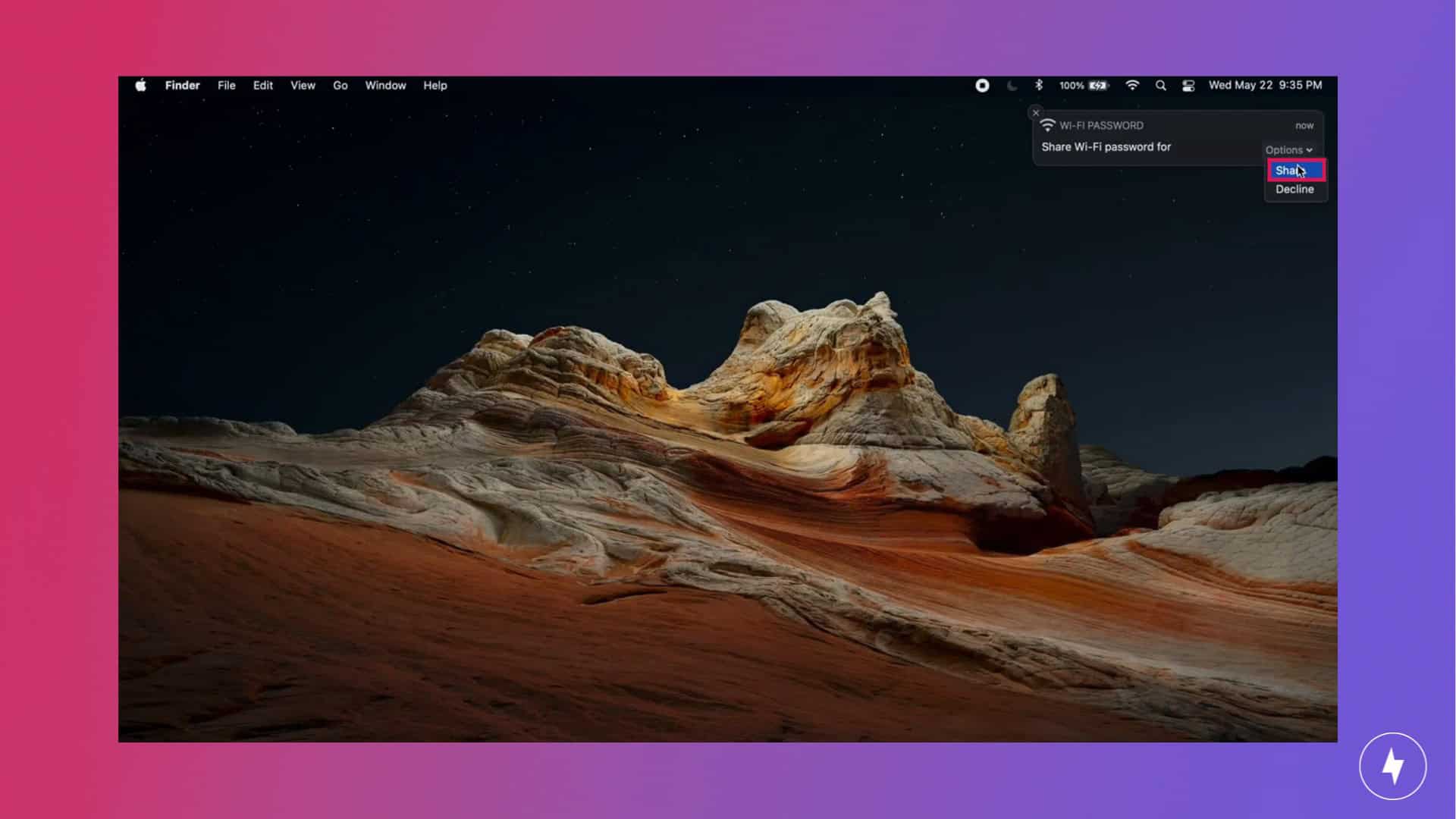
Apple makes sharing Wi-Fi passwords between its devices seamless, provided they run the latest versions of iOS, iPadOS, and macOS. The process mirrors sharing between iPhones:
- Add each other to Contacts via Apple ID email addresses.
- For the Mac user, click on the Wi-Fi symbol at the top right of the taskbar.
- Click on your Wi-Fi network.
- Wait for the iPhone user to select the correct Wi-Fi network and then, on the Mac, confirm sharing the password when prompted.
- For the iPhone user, go to Settings and then Wi-Fi.
- Tap on the correct Wi-Fi network and wait for the password to be shared by the Mac user.
Android to Android
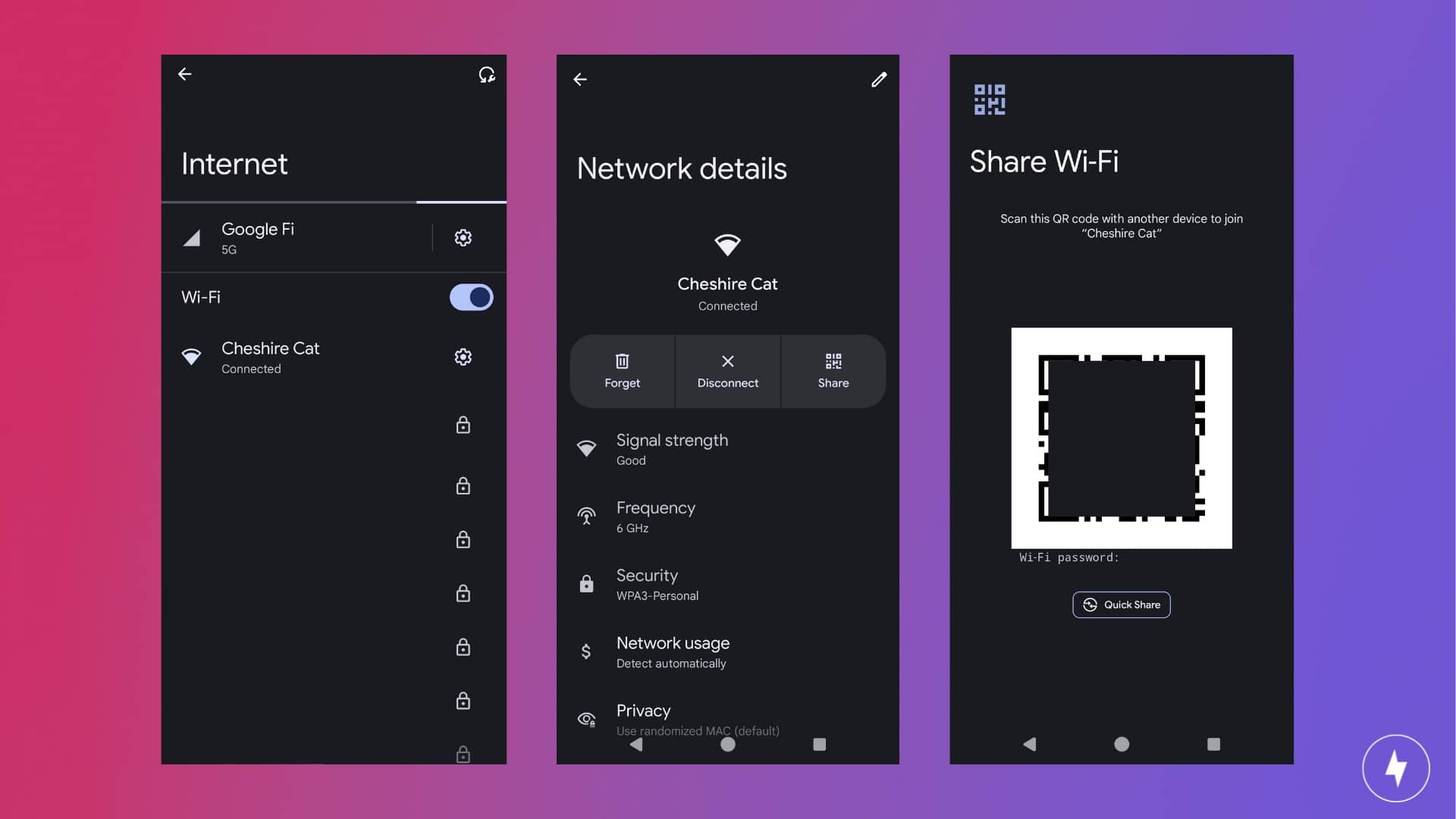
Android devices running Android 10 or later include a built-in QR code generator for Wi-Fi password sharing. This feature eliminates the need for third-party apps. Here’s how to use it:
- Navigate to Settings.
- Tap Network & Internet.
- Tap Internet. It will have the name of your current network underneath.
- Tap the cog symbol next to your Wi-Fi network name.
- Tap Share. If prompted, verify your identity using a fingerprint or your security pattern.
- Scan the QR code on the screen using the phone or tablet trying to connect.
iPhone to Android
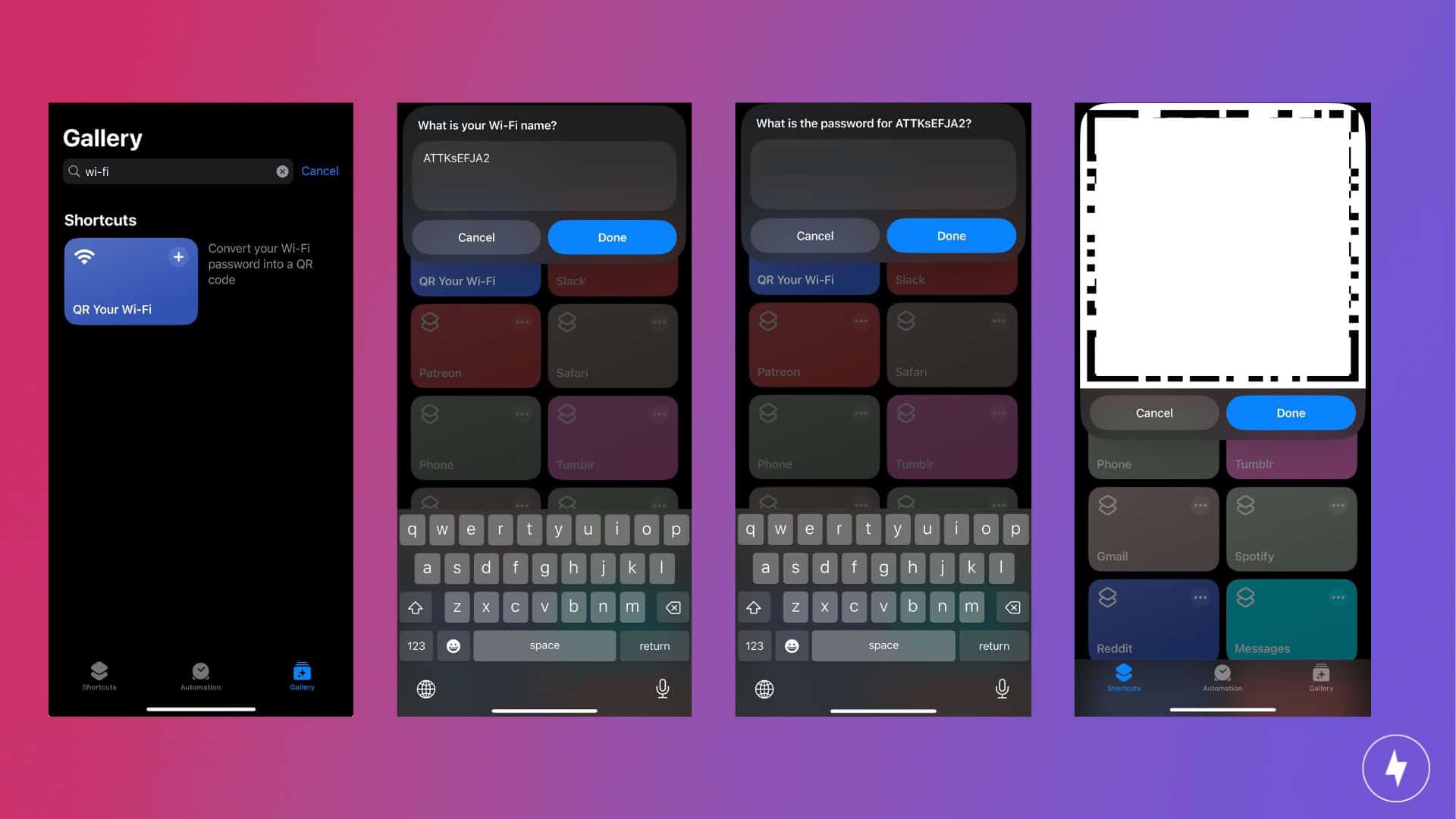
Sharing a Wi-Fi password between iPhone and Android devices requires generating a QR code. If you’re an Android user sharing the password, follow the same steps as Android-to-Android sharing. The iPhone user will scan the QR code using the camera app. For iPhone-to-Android Wi-Fi password sharing, use the Shortcuts app:
- Find the Shortcuts app.
- Tap on the Gallery tab.
- In the search bar, find and add the QR Your Wi-Fi shortcut.
- Go to Settings and Wi-Fi.
- Tap the i icon next to your Wi-Fi network.
- Copy your Wi-Fi password.
- Go back to the Shortcuts app.
- Tap on the Shortcuts tab.
- Tap on QR Your Wi-Fi.
- Type in your Wi-Fi network name if it’s not already automated and tap Done.
- Paste your Wi-Fi password and tap Done.
- The QR code will pop up on the screen for the Android user to scan.
Risks of Sharing Wi-Fi Passwords
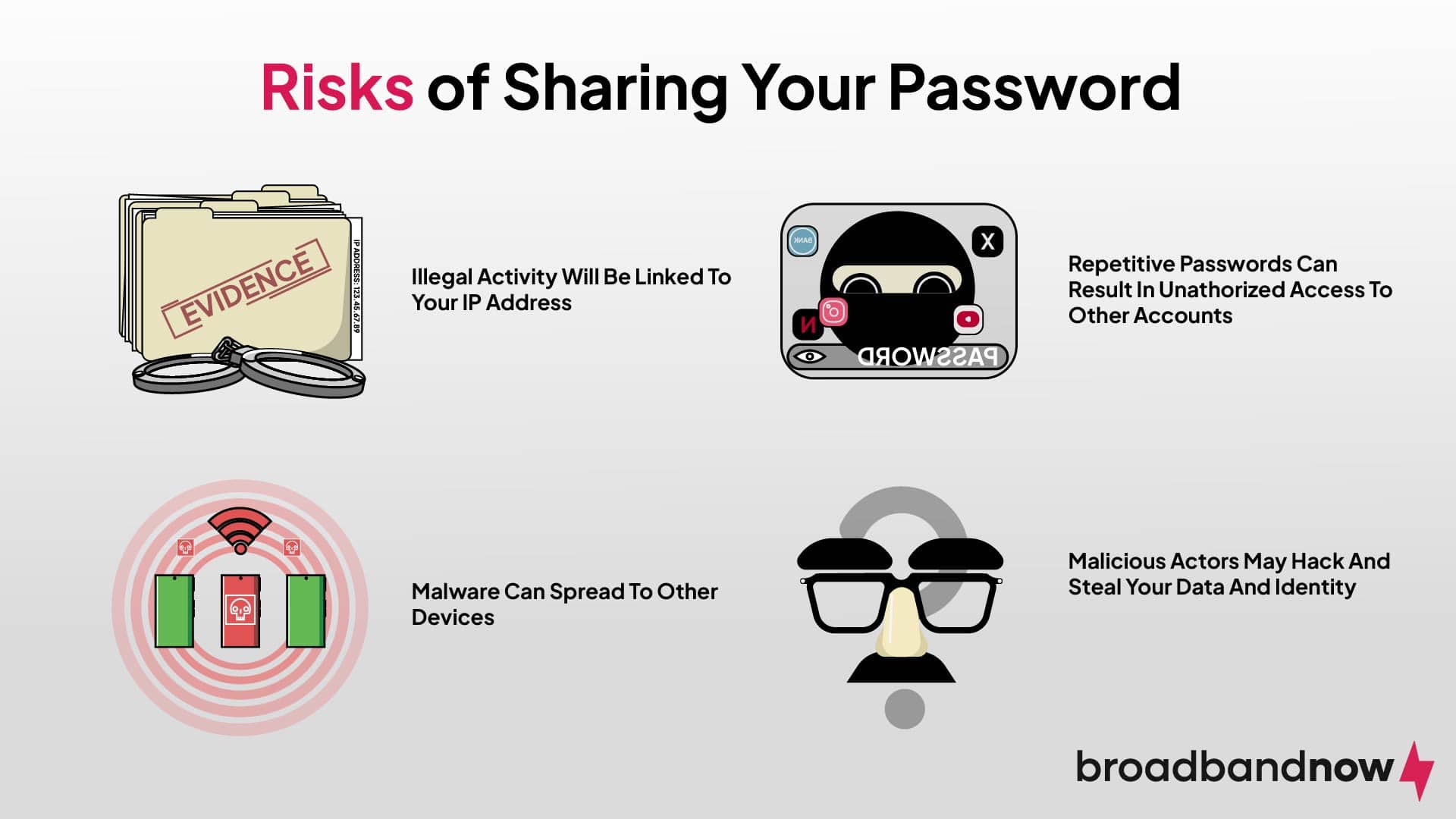
While sharing Wi-Fi access is sometimes necessary, you should understand the security and data privacy risks involved. Unsecured networks can expose your personal information and devices to threats:
- If someone commits illegal activities on your network, which has a unique IP address, you could get into trouble with authorities.
- A device with a strain of malware can spread the malware to other devices on the network.
- If you use the same password for other accounts, you may have unauthorized access to those accounts.
- If a malicious actor gets on your network, they can hack into your device to steal data, including your identity.
It’s best to proceed with caution when sharing your password and securing your home Wi-Fi network to minimize security threats. If a malicious actor is able to infiltrate the network, they can use your Wi-Fi to perform illegal downloads. If you have an internet cap, they can use up that data, leading to additional charges. In some cases, a hacker can gain unauthorized access to your network or device to steal personal data or spread malware on your devices.
Frequently Asked Questions About Sharing a Wi-Fi Password on iPhone, Mac, and Android
How do I share my Wi‑Fi password between iPhones?
On both iPhones, turn on Wi‑Fi and Bluetooth, make sure each person’s Apple ID email is saved in the other’s Contacts, and connect your iPhone to the Wi‑Fi network. When the other iPhone selects that network in Settings, a prompt will appear on your device; tap “Share Password” to connect them instantly without revealing the actual password.
How can I share my Wi‑Fi from a Mac to an iPhone?
Sign in to iCloud on both devices, turn on Wi‑Fi and Bluetooth, and add each other’s Apple ID emails to Contacts. Connect the Mac to the Wi‑Fi network, then have the iPhone select the same network in Settings; a pop‑up on the Mac will let you click “Share Password” so the iPhone can join automatically.
How do Android phones share a Wi‑Fi password with a QR code?
On Android 10 or later, go to Settings, open Network & Internet (or Connections), tap your current Wi‑Fi network, and choose the Share or QR‑code icon. Your phone will display a QR code that another Android (or even an iPhone camera) can scan to join the network without typing the password.
Can I share my Wi‑Fi from iPhone to Android?
Yes, but you’ll need to generate a QR code instead of using Apple’s automatic sharing. You can use an iOS shortcut or a trusted QR‑code tool to encode your network name and password, then have the Android device scan the code with its camera to connect.
Is it safe to share my Wi‑Fi password this way?
Built‑in sharing features and QR codes are generally safer than saying your password out loud or typing it into someone else’s device, but there are still risks. Only share access with people you trust, use a strong and unique Wi‑Fi password, keep your router’s security settings updated, and consider a separate guest network so visitors aren’t on the same network as your personal devices.